
How Much Data Does Google Maps Use? Here’s the Truth
Learn how much data Google Maps really uses and how to keep costs low when traveling. From offline maps and data saver tips to Jetpac international eSIM plans, this guide covers everything you need for stress-free navigation abroad.
Learn how much data Google Maps really uses and how to keep costs low when traveling. From offline maps and data saver tips to Jetpac international eSIM plans, this guide covers everything you need for stress-free navigation abroad.
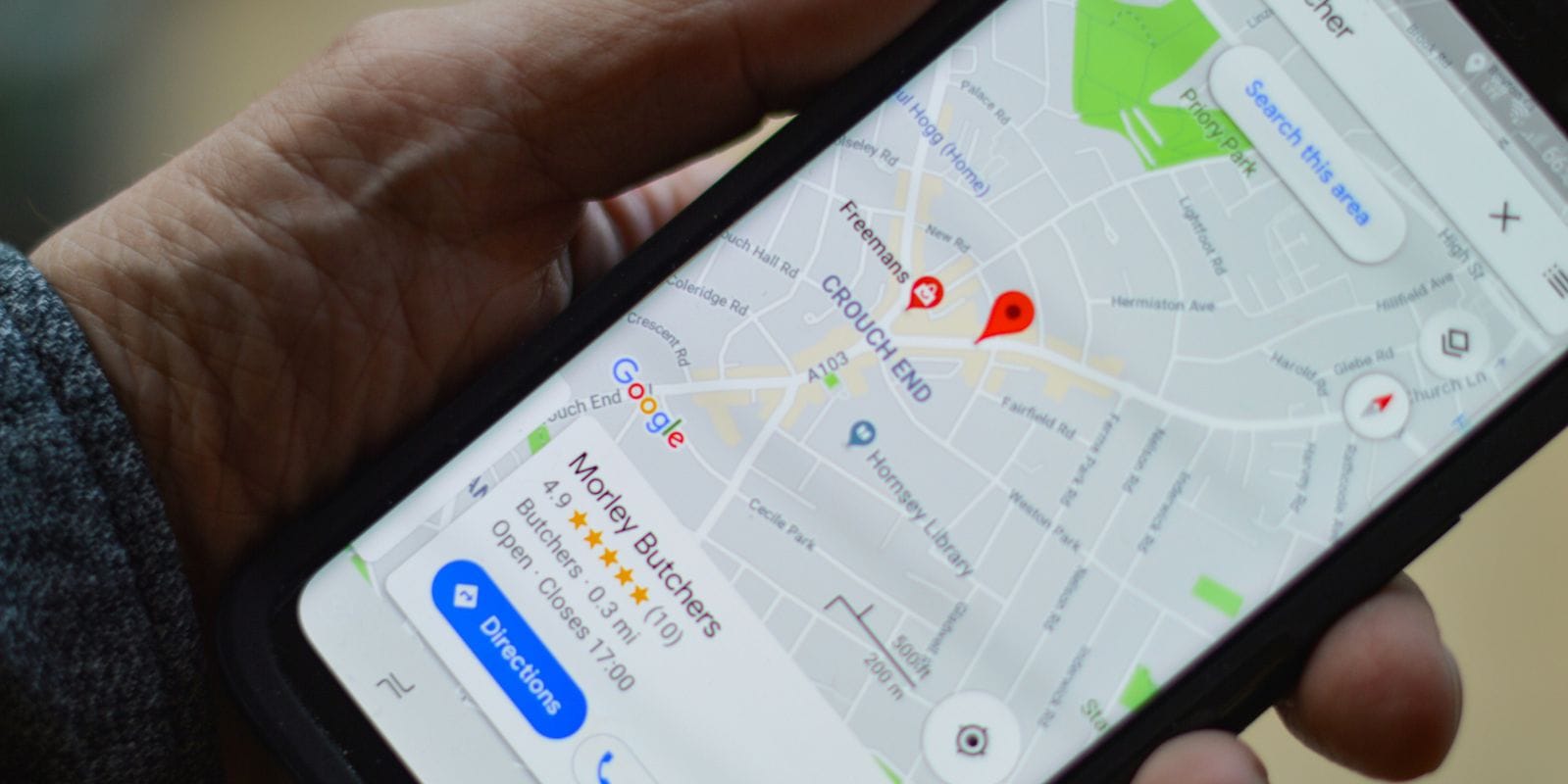
Google Maps is one of the most reliable apps for navigating cities, planning trips, or finding your way in a new country. Whether you’re walking around your hometown, driving cross-country, or exploring abroad, it’s the app most people open first. But if you’re on a limited mobile plan or traveling internationally, you’ve probably asked yourself: how much data does Google Maps use?
The truth is, it doesn’t use as much data as video streaming or social media, but it’s not zero either. Depending on how you use the app, you can burn through a little or a lot of data in a single trip. This guide explains everything in detail: how much data does Google Maps use, how to check your data usage, ways to reduce data consumption, and smart tips for staying connected with international eSIM plans like Jetpac when you’re on the road.
Does Google Maps Use a Lot of Data?
For most people, the short answer is no. Does Google Maps use data in large amounts? Not compared to apps like YouTube or Netflix. On average, you’ll use 5 to 10 MB of data using standard navigation for a one-hour drive.
Still, if you rely heavily on turn-by-turn navigation or use extra features like satellite view and live traffic updates, your data usage can increase significantly. For instance, one hour of driving with satellite view can easily use 120 to 180 MB per hour. And if you’re abroad, roaming charges can make even small amounts expensive. That’s why travelers often rely on international eSIM options instead of paying high roaming fees.

Photo by Jetpac
Factors That Influence Google Maps Data Usage
Before deciding if you need to cut back on your data usage, you should understand what affects how much data does Google Maps use.
Opening the App
When you first launch Google Maps, it loads your current area. This usually consumes 1–2MB of data. Not much, but if you open the app several times a day, it can add up over the month.
Zooming In and Out
Every time you zoom closer, new map tiles need to be downloaded. A single zoom action might use less than 1MB, but repeated zooming when exploring large areas can easily double your data use.
Searching Places of Interest
Looking up restaurants, hotels, or attractions pulls in extra data for reviews, photos, and directions. Each search adds 1–2MB or more. If you’re on a tight plan, limit constant searching and pre-plan your stops.
Following Directions
Most people use turn-by-turn navigation. This steady data stream averages about 5MB every 10–15 minutes. For a one-hour trip, expect to use around 25MB. Longer road trips can cross 100MB quickly if you also use live traffic updates.
Using Satellite View
This is the biggest data hog. Switching from standard to satellite view downloads high-resolution imagery. One hour of satellite navigation can easily hit 100MB or more, making it the heaviest option for data usage.
Tip: Stick to the standard map mode unless you specifically need satellite images.
How to Check Google Maps Data Usage
Even though we know the averages, it’s always smart to track your actual data usage on your device. Each phone has its own settings, allowing you to check the data usage of Google Maps.
On iPhone
Open Settings > Cellular.
Scroll down to find Google Maps.
You’ll see exactly how much mobile data it has used since the last reset.
To monitor monthly, reset your statistics at the start of your billing cycle.
There are several tips for how to reduce mobile data usage on iPhone, like disabling background refresh for Google Maps.
On Android
Go to Settings > Network & Internet > Data Usage. Or if you have a latest Android phone, such as Samsung S23, go to Settings > Connections.
Tap App Data Usage > Mobile Data Usage.
Select Google Maps to see how much data it consumed in the current cycle.
You can also set data warnings or limits if you want to avoid surprises.
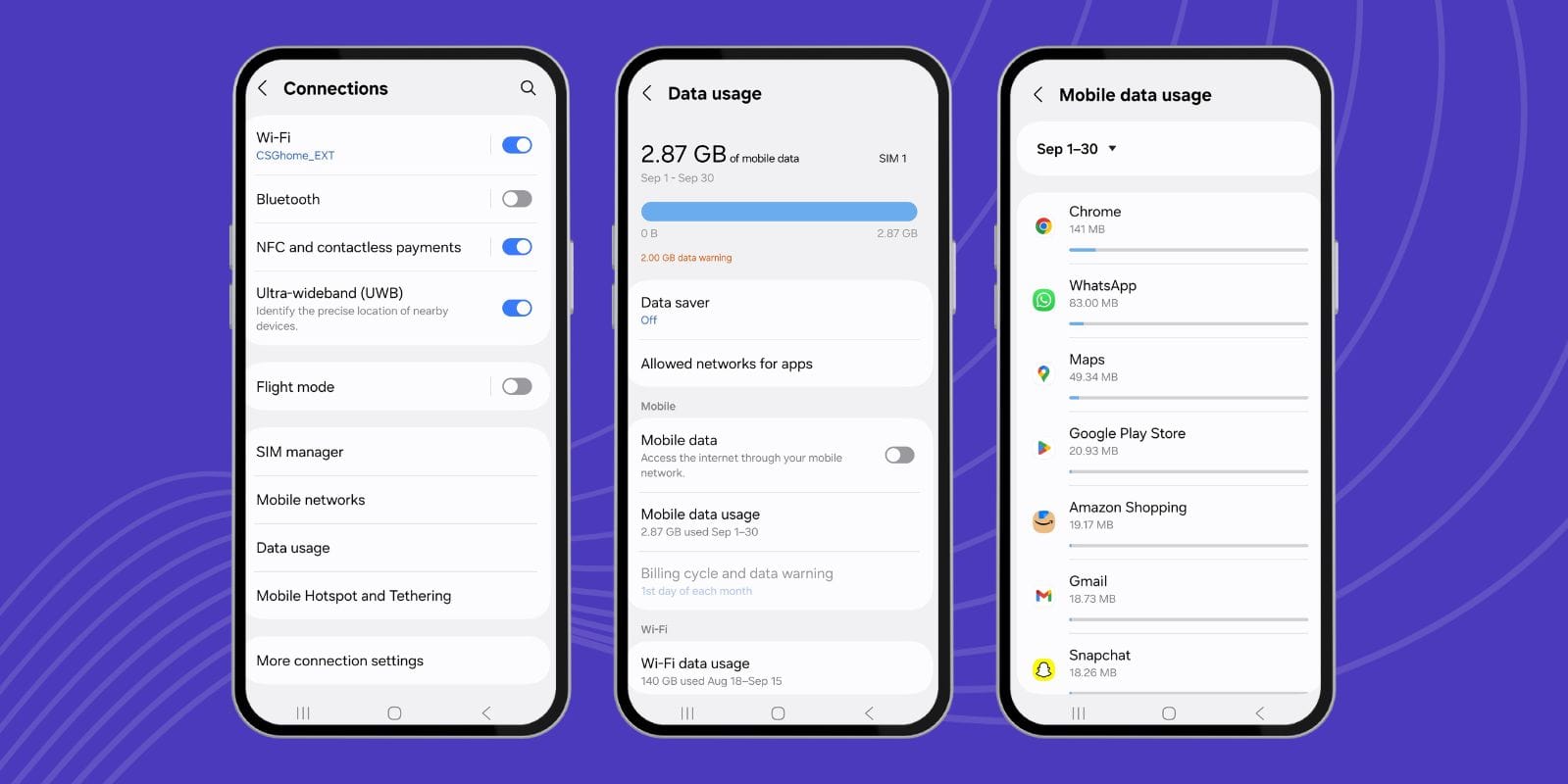
Photo by Jetpac
On Google Pixel
Open Settings > Network & Internet > SIMs > Data Usage.
Tap App Data Usage.
Scroll down and select Google Maps to view total mobile data used.
You can also restrict background usage here if you want Maps only to consume data while open.
Every phone allows you to not only check your data usage but also reduce the usage through different options, such as limiting the data usage and turning on low data saving mode.
How to Reduce Data Usage in Google Maps
When you’re traveling abroad or working with a limited data plan, even a light app like Google Maps can add up over time. The good news is, there are plenty of ways to stay connected while keeping your usage low. By planning ahead and making minor adjustments in the app settings, you can save hundreds of megabytes each month. Let’s look at the best strategies to reduce data without losing the features you rely on most.
Download Offline Maps
One of the most effective solutions is to download offline maps before your trip. If you know you’ll be driving in a particular city, region, or even across an entire country, save that area in advance. Learning how to download maps on Google Maps is simple: search for your destination, tap the three-dot menu, and choose “Download Offline Map.” Once it’s saved, navigation will work without using mobile data. This is especially useful in rural areas, on long road trips, or while traveling internationally, where roaming fees are high.
Skip Satellite View
Satellite view looks amazing with its real-world imagery, but it can triple your data usage. Each swipe or zoom in satellite mode loads heavy image files instead of simple map tiles. If you’re trying to save data, stick to the standard map layout. It gives you everything you need for directions without burning through megabytes.
Use an eSIM
Even if you save as much as possible, using maps abroad will require some data. Instead of relying on your home carrier’s expensive roaming, switch to international eSIM plans. Providers like Jetpac offer an eSIM for international travel that you can activate instantly when you land. With Jetpac, plans start at just $1, and you’ll have coverage in more than 200 countries. This way, even if you use data for live navigation or traffic updates, you won’t be hit with huge bills. An international eSIM like Jetpac also lets you use essential apps like WhatsApp or Google Maps even if your data runs out.
Turn On Data Saver Modes
Both iPhones and Android phones have built-in data saver features. Turning this on ensures Google Maps only refreshes when absolutely necessary. It also prevents background data usage, so you’re not wasting megabytes when the app is idle. It is beneficial if you have several apps running at once.
Limit Live Traffic Updates
Real-time traffic data is one of Google Maps’ most helpful features, but it comes at a cost. Traffic layers constantly update in the background, which increases consumption. If you’re not driving in a major city or don’t need second-by-second updates, disable this option. In many cases, you’ll save 30–40% of your data usage without noticing a huge difference in your route.
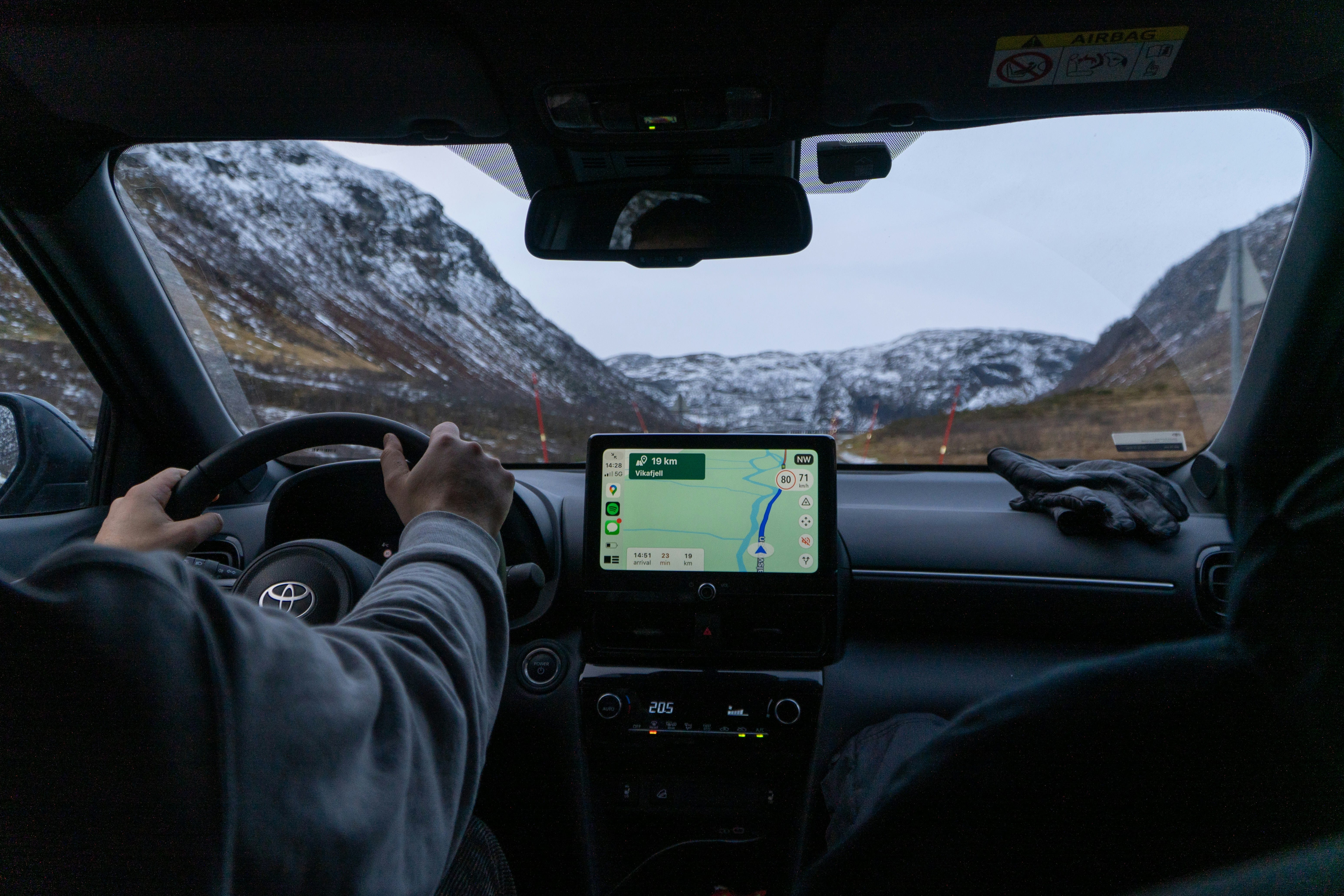
Photo by Ed Wingate on Unsplash
Google Maps vs Other Navigation Apps
Google Maps has become the go-to choice for millions of people, but it’s not the only navigation app available. Many travelers wonder not just how much data does Google Maps use, but also how it compares with competitors. While every app has its benefits, its data consumption can vary significantly depending on its features. Here’s how Google Maps compares with other popular options.
Apple Maps
Apple Maps is well integrated with iPhones, making it convenient for iOS users. Its design is sleek, and it works seamlessly with Siri voice commands. However, one drawback is its limited offline map support. This means if you’re abroad and don’t have Wi-Fi, you’ll likely consume more roaming data than with Google Maps. For everyday use, it’s smooth and accurate, but when traveling internationally, it can lead to higher costs without an offline backup.
Citymapper
Citymapper works in major cities around the world. It’s one of the best apps for urban commutes, giving live updates on buses, trains, and subways. But all those live feeds require constant refreshing, so the data usage adds up quickly. If you’re on a limited plan or paying roaming fees, Citymapper can consume much of your data plan. It’s great for city living, but not always practical for long trips without unlimited data.
Komoot
Komoot is built with hikers, cyclists, and outdoor adventurers in mind. It offers detailed trail maps and terrain information, which can be downloaded for offline use. However, these offline files are large and can consume a significant amount of storage space on your phone. Once downloaded, Komoot works well without burning through data, but if you rely on live updates or constantly change routes, usage may increase.
Waze
Waze is known for its real-time, community-based updates. Drivers love it for spotting traffic jams, speed cameras, and police checks. However, because the app constantly refreshes with user-reported data, it uses significantly more mobile data than Google Maps. If you’re on an unlimited plan, this isn’t a problem. But if you’re traveling abroad without international eSIM plans, Waze can end up being more expensive than other apps.
So, does Google Maps use data? For most travelers, Google Maps is the most accurate, reliable, and uses moderate data compared to other apps. It’s a go-to app for many who travel abroad and want to control data usage.
Skip Roaming Fees With a Jetpac eSIM
Travelers often worry more about costs than data amounts. Even if Google Maps uses data lightly, roaming fees can be expensive. International eSIMs like Jetpac cannot only save you on data, but you can also enjoy many other perks.
With international eSIM options, Jetpac offers:
Instant activation in over 100 countries.
Plans starting at just $1.
24/7 customer support.
You can keep using WhatsApp, Google Maps, and rideshare apps even if your data runs low. However, certain limitations may apply.
Using Jetpac means you can focus on your trip instead of worrying about surprise bills. For frequent travelers, using Google Maps with international eSIM plans is the smartest way to navigate. You can also track your data usage with the Jetpac eSIM app, and top up whenever you need.
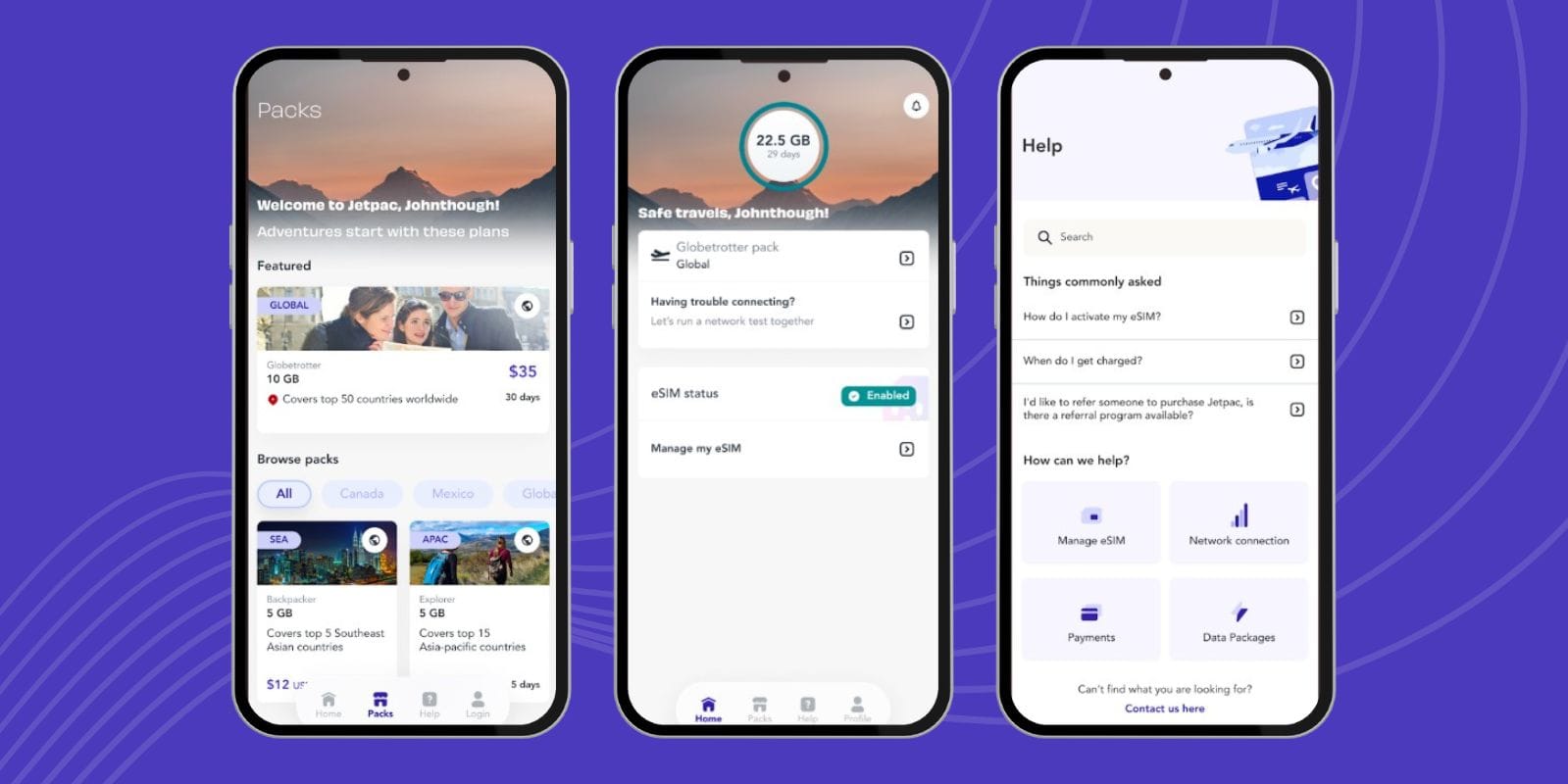
Photo by Jetpac
FAQ
How Much Data Does Google Maps Use?
On average, Google Maps uses around 3–5MB every 10 minutes. That’s about 30MB per hour. So 1GB can last up to 30 hours of driving.
Does Google Maps Work Offline?
Yes, Google Maps works offline. By learning how to download maps on Google Maps, you can navigate without a connection. Offline maps are perfect for areas with poor service.
How long does 1GB of data last on Google Maps?
At ~30MB per hour, 1GB is enough for 30+ hours of navigation. That can be used over several long trips.
Which countries are covered by Google Street View?
Google Street View covers over 80 countries, including the US, most of Europe, Japan, and parts of South America, and the coverage is constantly expanding.
Does Google Maps use GPS?
GPS itself doesn’t use data. But map images, directions, and traffic updates consume your data.
How to download maps on Google Maps?
Search for your location > tap the menu > select “Download offline map.” You can download offline maps using Wi-Fi while you’re still at home, or at a hotel, to save your mobile data.
How to share location on Google Maps?
Open the app, tap your profile > Location Sharing > you can choose the name of a person to share data with.
How can I use Street View on Google Maps?
Using street view on Google Maps is easy. Search for a place, tap and hold a street, then open Street View. It gives you a 360° view of your destination.
So, how much data does Google Maps use? For most people, it uses around 30MB per hour. Still, over weeks of travel, it can add up. The key is using the data smartly: download offline maps, avoid satellite view, and turn off traffic layers when not needed.
If you’re going abroad, don’t risk high roaming costs. With Jetpac’s international eSIM plans, you get affordable coverage, instant setup, and stress-free navigation. Whether it’s daily commutes or international adventures, combining Google Maps with a Jetpac eSIM for international travel makes staying connected easy and affordable.