
How to Check if an iPhone is Unlocked (For Travel & eSIM Use)
Not sure if your iPhone is unlocked? Learn how to check if your iPhone is unlocked before you travel. Ensure eSIM compatibility, avoid costly roaming fees, and stay connected abroad with Jetpac eSIM.
Not sure if your iPhone is unlocked? Learn how to check if your iPhone is unlocked before you travel. Ensure eSIM compatibility, avoid costly roaming fees, and stay connected abroad with Jetpac eSIM.
Your flight leaves in three days. You bought an eSIM online to avoid those insane roaming charges, downloaded all your travel apps, and you're feeling pretty smart about staying connected abroad. But then you realize, wait, is my iPhone unlocked? You have no idea.
Don't worry, you're definitely not the first person to have this moment of panic. Many people use their iPhones for months without ever thinking about whether it's locked or unlocked for international travel. In this guide, we’ll explain “how to check if iPhone is unlocked” and what to do if it’s not.
What Does It Mean for an iPhone to Be Unlocked?
If you're wondering how to know if iPhone is unlocked, you first need to understand what "unlocked" actually means.
When you buy an iPhone from your carrier (like Verizon or AT&T), they often lock it to their network. Because they're giving you a good deal on the phone: either selling it cheaper than retail or letting you pay monthly, and they want to make sure you stick around long enough for them to make their money back. However, it may vary from carrier to carrier, and also depends on your home country.
A locked iPhone is basically stuck with one carrier. You can't just switch to another company or use a different SIM card without getting it unlocked.
Difference Between Locked Vs Unlocked Iphones
An unlocked iPhone can work with any carrier that's compatible with it. Just pop in their SIM card, and you're good to go.
However, a locked phone will only work with the carrier you purchased your iPhone from.
With an unlocked phone, you can buy cheap local SIM cards or use eSIMs from any company. With a locked phone, you're stuck with whatever your home carrier offers for international service, and it can get costly.

Why an Unlocked Phone is Essential for Using eSIM Abroad
Many travelers are now shifting to eSIMs for international trips due to various reasons. Instead of those tiny plastic SIM cards that you always lose, an eSIM is digital. You just download it to your phone without swapping your SIM card or hunting for local SIM card shops in foreign countries where you don't speak the language.
But eSIMs only work on unlocked phones. If your carrier has locked your iPhone, you won't be able to download and use eSIMs from other companies. It doesn't matter if you paid for the eSIM or if it's completely legitimate. A locked phone will block it.
So if you're planning to use an eSIM for international travel, you absolutely need to make sure your iPhone is unlocked first.
Why Check if Your iPhone is Unlocked Before You Travel?
If your iPhone is locked and you're already traveling, you're stuck. Your eSIM won't activate, and you'll have to call customer service from abroad to resolve the issue. Most major carriers charge around $10 to $12 per day for international roaming. Some charge even more. That's $70 to $84 for a week-long trip. Compare that to an eSIM that might cost you about $20 for the entire week with more data than you could possibly use, along with many other perks such as free lounge access in case of flight delays.
When you know how to check if iPhone is unlocked ahead of time, you can get everything sorted before you leave home. You can buy your eSIM plan and have complete peace of mind. When your plane lands at your destination, you just turn on your iPhone and you're connected immediately.
So, next time when you start to think “is my iPhone unlocked”, it’s best to take time and check it before you step on a plane.
5 Ways to Check if Your iPhone is Unlocked
If you are wondering “how to check if iPhone is unlocked,” here are the five ways:
1. Use a Different SIM Card
This is probably the easiest way to check if iPhone is unlocked, assuming you can get your hands on a SIM card from a different carrier.
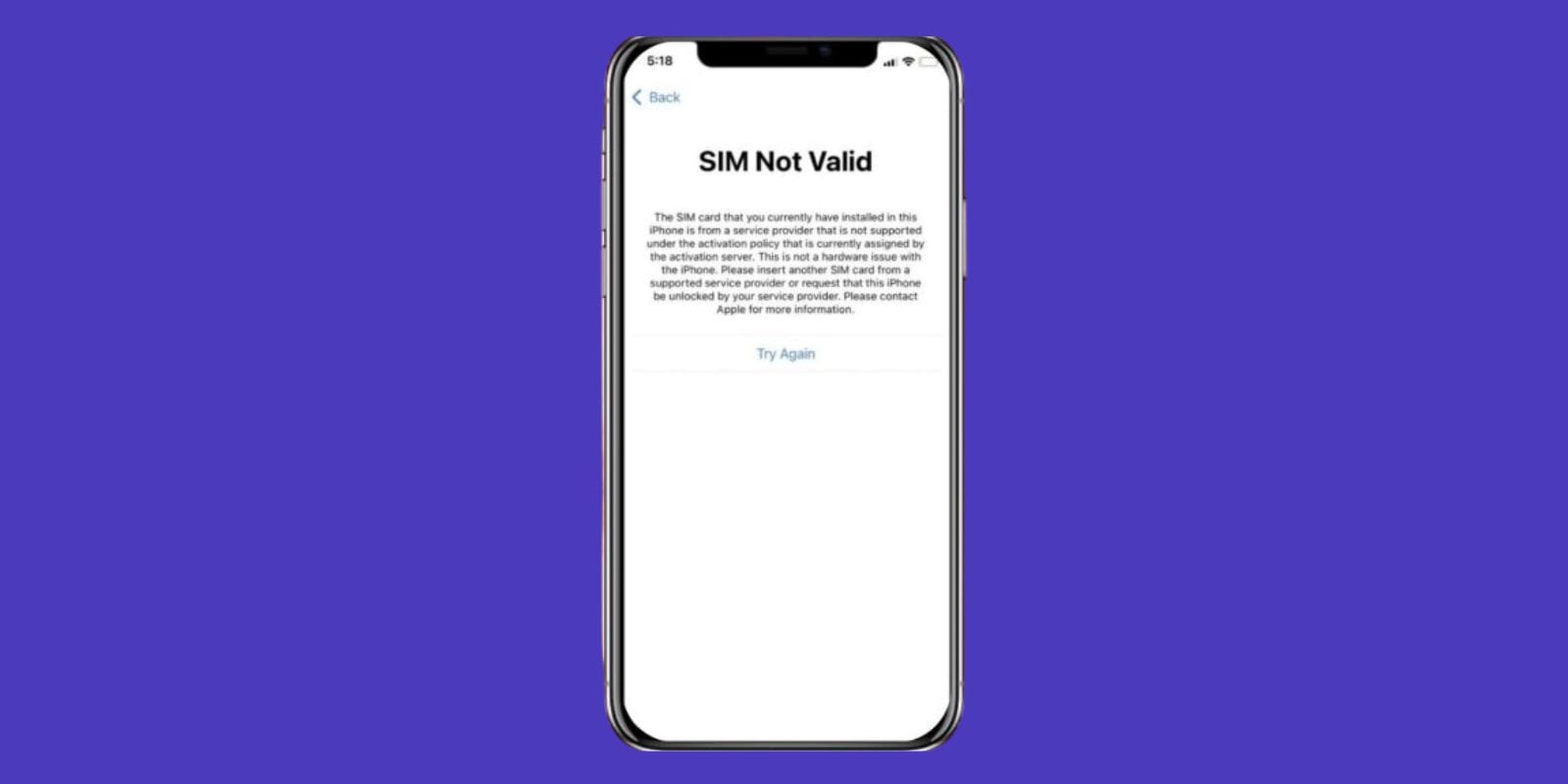
Turn your iPhone off. Find the little tray on the side with a tiny hole. Use the SIM tool or a paperclip, poke the hole, and the tray pops out. Swap SIM cards, turn the iPhone back on, and wait two minutes. Look at the carrier name in the top corner. If it shows the new carrier and works normally, your phone's unlocked. If you see "Invalid SIM" or "No Service," it's locked.
Just make sure you use a different carrier than the one you already have. Some phone repair shops might let you test one too, but call first to ask.
2. Check in iPhone Settings
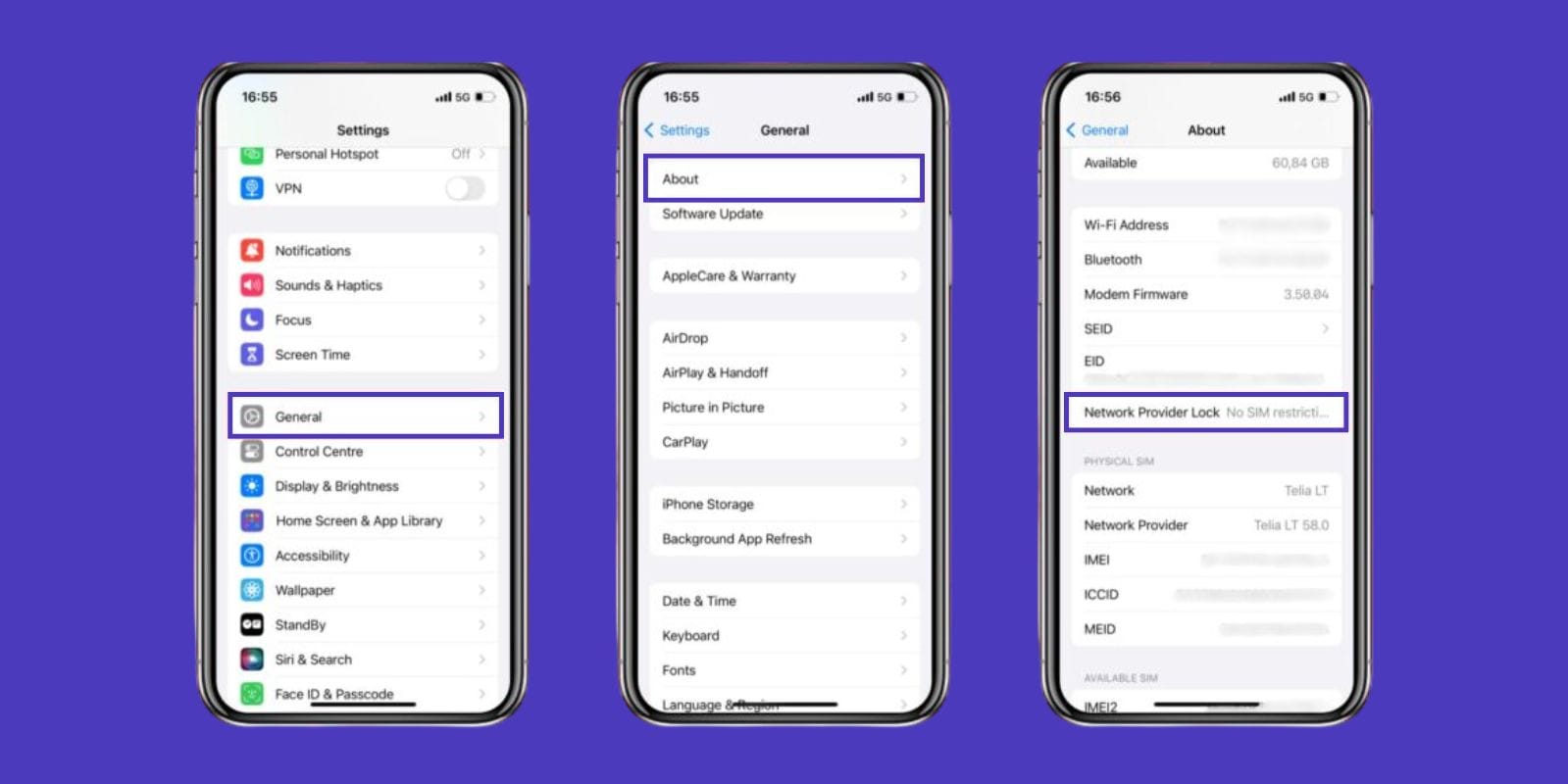
If you are thinking about how to check if iPhone is unlocked, you can check it in your device’s settings. Apple actually made this pretty simple if you have a newer iPhone. You can check if iPhone is unlocked in your settings.
Go to Settings > General > About. Scroll down to "Carrier Lock." If it says "No SIM restrictions," your iPhone is unlocked. If it says locked or restricted, you need to get it unlocked.
However, this feature only works if you have iOS 14 or later. If you have an older phone, you won't see this option, and you'll need to try one of the other methods.
3. Verify Using Your iPhone's IMEI Number
Every iPhone has a unique IMEI number. Go to Settings > General > About and scroll down to find your IMEI. You can touch and hold the number to copy it.
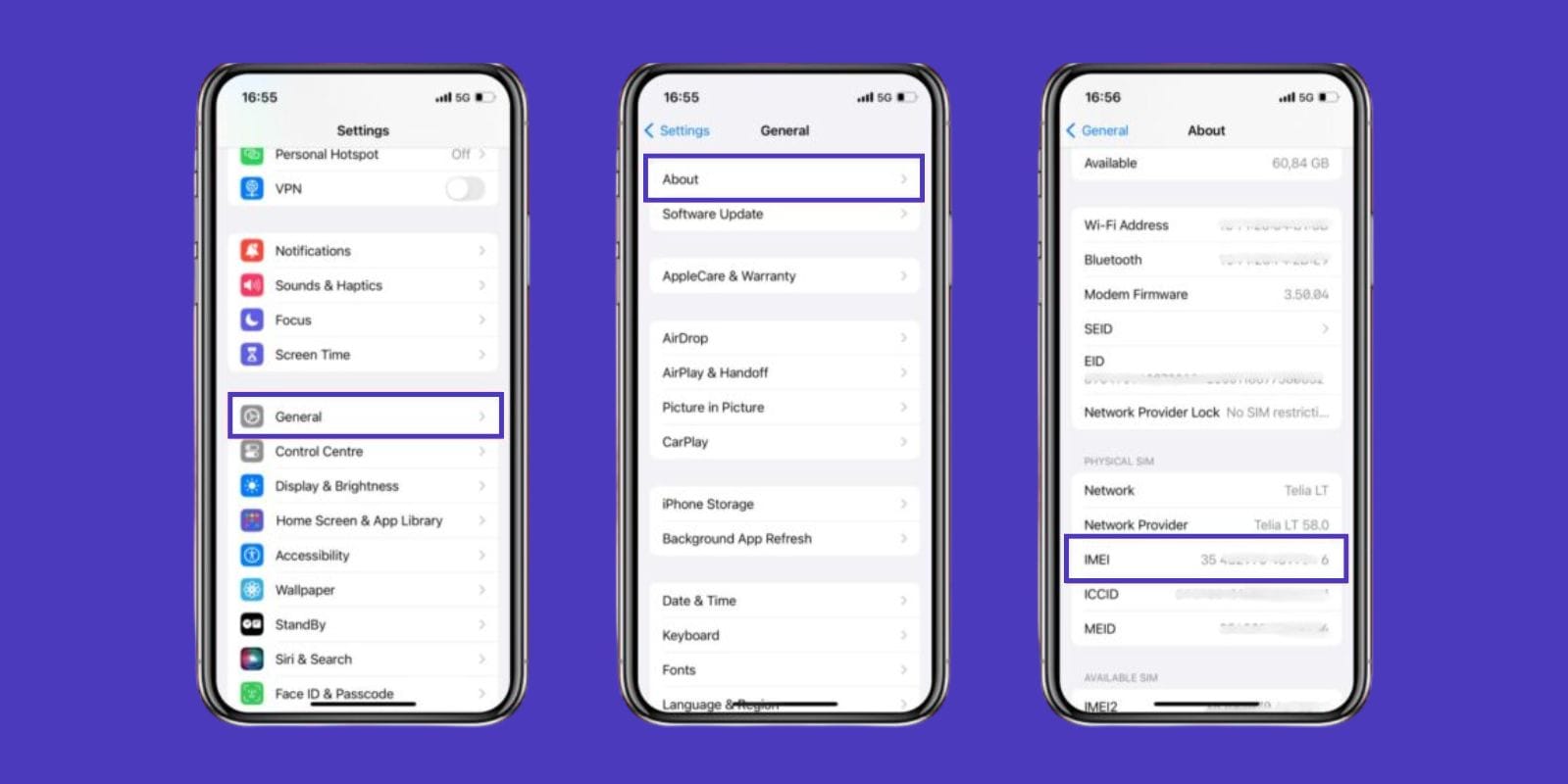
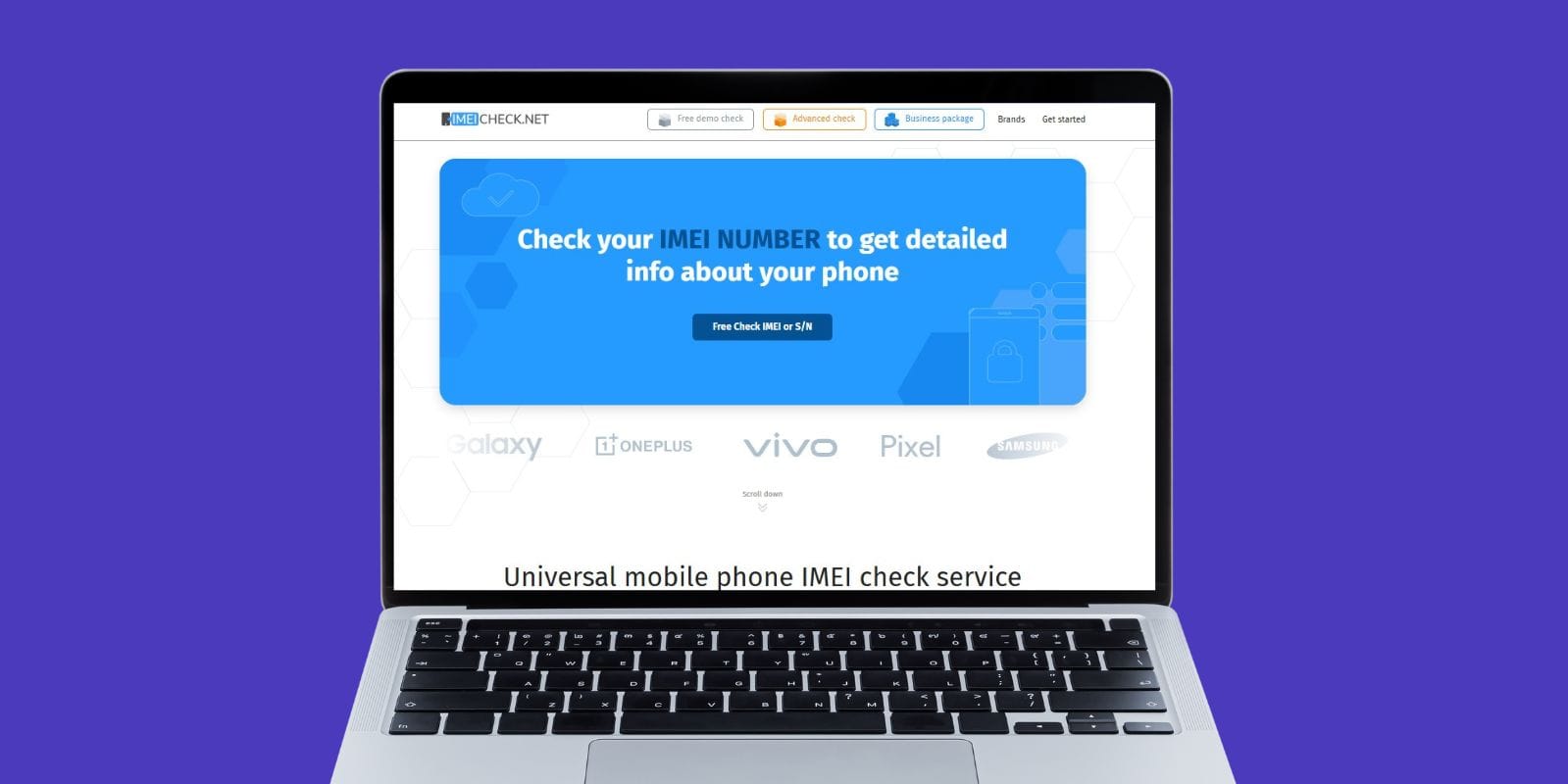
Once you have your IMEI, search for "online IMEI checker" to find websites that check unlock status. Enter your IMEI number to see whether your iPhone is locked or unlocked. They might call it "SIM lock status" or "carrier status," but both mean the same thing.
4. Contact Your Carrier Directly
Sometimes the simplest approach is to call your carrier and ask. They know exactly whether your phone is locked or not because they're the ones who would have locked it in the first place.
Most carriers can tell you right away over the phone. Some also show this information when you log into your account online.
5. Check via iTunes Restore (Advanced)
If you're still wondering how to check if iPhone is unlocked after trying other methods, you can verify this by restoring it through iTunes.
Plug your iPhone into a computer that has iTunes (or use Finder if you have a newer Mac). Select your iPhone and try to restore it. If your phone is unlocked, the restore should work normally. If it's locked, you might see some error messages that are specific to your carrier.
Restoring your phone wipes everything off it. So make sure to have a backup and be prepared to set up your phone from scratch. This should be your last resort if none of the above-mentioned methods work.
How to Check if Your iPhone is Unlocked for eSIM Use
Having an unlocked iPhone doesn't automatically mean it can use eSIMs. Here is how to know if iPhone is unlocked for eSIM use and whether it’s compatible:
Not All Unlocked iPhones Support eSIM
Apple only started putting eSIM capability in their phones in 2018, starting with the iPhone XS, iPhone XS Max, and iPhone XR. Older iPhones (iPhone X, 8, or earlier) can't use eSIMs even when unlocked. You'd have to stick with regular physical SIM cards.
Also, some iPhones sold in certain countries (especially China) have the eSIM features turned off due to local regulations. So even if you have the right model, it might not work. Find out if your iPhone is supported in our eSIM phone compatibility list.
How To Confirm eSIM Compatibility
To see if your unlocked iPhone can actually use eSIMs, go to Settings > Cellular. If you see "Add Cellular Plan" or "Add eSIM," your iPhone supports eSIM. That's where you'd scan the QR code that eSIM companies like Jetpac give you, or type in activation codes manually.
If you don't see those options, it means your iPhone doesn’t support eSIMs. You'll have to stick with regular SIM cards when you travel.
Troubleshooting: If Your iPhone is Locked
Found out your iPhone is locked? Don't worry. Most carriers will unlock your iPhone, but there are some steps you'll need to follow.
How To Request Carrier Unlock
Call your carrier and ask about unlocking your phone. They'll tell you what you need to do. Usually, you need to have paid all your bills and not owe them any money. Many carriers also make you wait a certain amount of time after getting the iPhone, typically somewhere between 40 and 90 days.
The process is usually very simple. You may need to fill out a form online or request it over the phone. They'll verify your account information and tell you whether you qualify.
How Long Does It Usually Take
Most of the US carriers, like Verizon, AT&T, and T-Mobile, will unlock your iPhone within 24 to 72 hours after your request is accepted. Some international carriers may take a bit longer, up to a week or so.
They'll usually send you an email or text message when it's done. Sometimes you need to restart your phone or do a quick settings reset to activate the unlock.
Options If Your Carrier Refuses
If your carrier says no because you still owe money on your phone, you might want to consider just paying it off. Some carriers will also do temporary unlocks for travel. They might unlock your phone for 30 or 60 days, which could be enough for your trip.
Why Choose Jetpac eSIM for Your Unlocked iPhone
Now that you've confirmed your iPhone is unlocked and supports eSIM, you need to pick the right service provider for your travels, such as Jetpac eSIM.
Instant Activation
Once you've figured out how to check if iPhone is unlocked and confirmed your device is compatible with eSIMs, you can instantly activate Jetpac eSIM.
The process is easy and simple. Just buy a plan online based on your destination, they email you a QR code, scan it with your phone, and you're done. Your eSIM will start working as soon as you land. In case of any issue regarding setting up eSIM, you can always contact Jetpac customer support, which is available to help you 24/7.
No Physical SIM Needed
With Jetpac eSIM, there's no physical SIM card to worry about. You can simply install your eSIM digitally. Just follow the Jetpac eSIM guide, and you can enjoy seamless data coverage on multiple networks, no matter where you travel.
Affordable Data Plans Compared To Roaming
Roaming may probably cost somewhere around $10 to $15 per day, and that usually comes with limited data.
Compared to roaming, Jetpac eSIM plans are way cheaper. You can get the best data coverage for a day, a week, or even a month, for less than what your carrier charges. And you don't have to worry about overage charges or running out of data. You can always track your data usage at the Jetpac eSIM app.
Keep Your Existing WhatsApp Number
Here's something a lot of people don't think about: when you swap out your physical SIM card for a local one, it can mess with apps like WhatsApp that are connected to your local number. Sometimes you have to go through verification processes again, and you might lose chat histories.
With Jetpac eSIM, your original phone number stays active for messaging while the eSIM handles your data connection. Your WhatsApp keeps working normally, and people back home can still reach you without any issue.
Jetpac eSIM offers multiple plans for all kinds of travelers. If you are a frequent flyer, you can choose the Jetflex and subscribe to a recurrent plan, and also enjoy many other perks, such as free access to a lounge in case of flight delays.
However, if you’re a business or corporate traveler, you can also check Jetpro, which offers great data deals and other perks.

FAQs
Can I use an eSIM on a locked iPhone?
Unfortunately, you cannot. If your iPhone is locked to your carrier, you won't be able to activate eSIMs from other companies.
How do I know if my phone supports eSIM?
Go to Settings > Cellular and look for "Add Cellular Plan" or "Add eSIM." If you see those options, your phone supports eSIMs. If you don't see them, your phone doesn't have the capability. Generally, you need an iPhone XS or newer for eSIM support.
Does unlocking my phone erase my data?
No, it doesn’t. Getting your phone unlocked doesn't remove or erase anything on your phone.
Can I use both physical SIM and eSIM at the same time?
Yes! Most newer iPhones can run both a physical SIM and an eSIM at the same time. You can keep your home number active for important calls and texts while using a local eSIM for cheap data.
Knowing how to check if iPhone is unlocked before you travel can save you both money and stress. It's definitely worth figuring out before you're standing in a foreign airport, wondering why you cannot connect to data. And once you've got an unlocked iPhone, you can use a Jetpac eSIM, which provides you with reliable data coverage in over 150 countries.
Whether you're taking a quick business trip to Europe, exploring Southeast Asia, or traveling across North America, Jetpac eSIM plans won't break the bank and connect you without any issue. You can set the eSIM before you leave home, so you'll have internet as soon as you land.