
How to Transfer an eSIM from One iPhone to Another (Step-by-Step)
Learn how to transfer an eSIM from one iPhone to another in minutes using Quick Transfer or a QR code. Follow this simple step-by-step guide to switch your eSIM before traveling.
Learn how to transfer an eSIM from one iPhone to another in minutes using Quick Transfer or a QR code. Follow this simple step-by-step guide to switch your eSIM before traveling.
Tired of swapping SIMs every time you travel somewhere? Worry no more. With eSIMs, it has become easier than ever to transfer from one iPhone to another. With Apple accepting eSIM tech across newer models, especially the iPhone 15 and newer, knowing how to transfer eSIM from one iPhone to another can save you a lot of time and stress.
Whether you're upgrading your phone, replacing a broken device, or planning to resell, this guide walks you through the process step by step. We’ll also share a few handy travel tips and explain why eSIMs, especially from providers like Jetpac, are worth it for frequent fliers.
What’s an eSIM and Why Would You Need to Transfer It?
An eSIM, short for embedded SIM, is precisely what it sounds like. It’s built right into your iPhone. It does all the same things a physical SIM card does, but without taking up any space. And since it's integrated in your device digitally, you can easily move it between phones without removing the SIM tray.
Whatever the reason, here’s how to transfer your eSIM from one iPhone to another without losing connection.
What You Need to Do First
Before you start the transfer process, you need to make sure of a few things, as mentioned below:
Both the old and new iPhones should be running iOS 16 or later.
Bluetooth needs to be turned on.
You're signed in with the same Apple ID on both devices.
You’ve Wi-Fi access or your carrier's QR code to read.
And most importantly, your mobile carrier should support eSIM transfer
Once you’ve got all of that checked, you’re ready to go.
Can You Transfer an eSIM to a New iPhone?
Yes, you definitely can, and Apple has made this process easy and simple. These days, how to transfer an eSIM to a new phone just depends on how your carrier handles digital SIMs.
There are two main ways to move your eSIM.
Quick Transfer, which is built into iOS
Using a QR code, which your carrier sends you
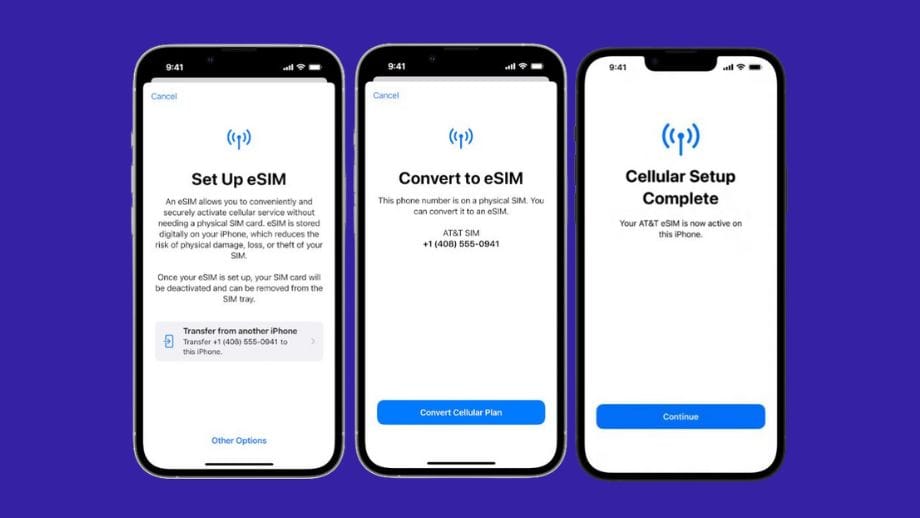
Method 1: Quick Transfer via iPhone Settings
This is the easiest option if both your old and new phones are in hand. Here’s how to transfer eSIM from one iPhone to another:
Power on your new iPhone and begin the setup process.
On your new iPhone, go to Settings > Cellular > Add eSIM.
You should see an option to pick a cellular plan from your old iPhone.
If nothing pops up, tap Transfer From Nearby iPhone.
Your old iPhone will prompt you to confirm the transfer. Tap Transfer.
Now, wait for some time, and your new iPhone will activate the eSIM automatically, and the old one will be deactivated.
Method 2: Scan a QR Code from Your Carrier
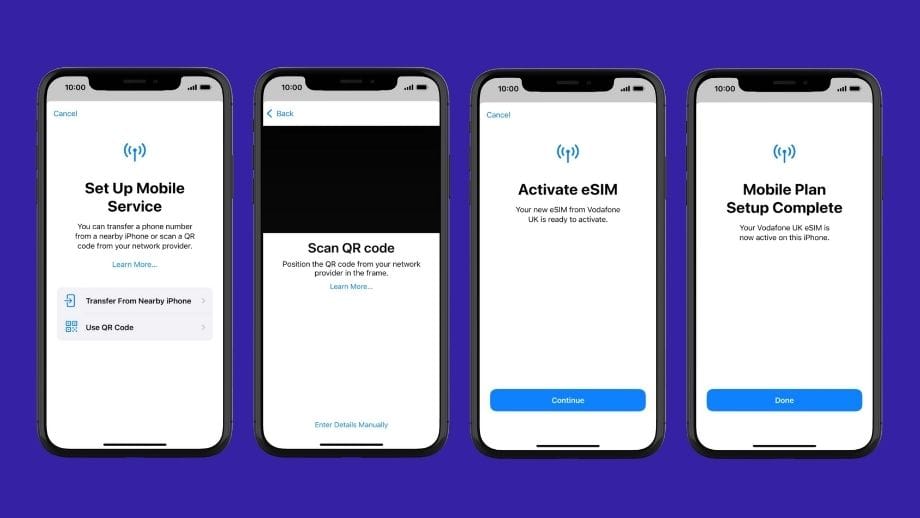
If your carrier doesn’t support Quick Transfer, don’t worry, you can still get your eSIM onto your new iPhone using a QR code. Here’s how to transfer an eSIM to a new phone using a QR code:
Open Settings on your new iPhone.
Tap Cellular > Add eSIM > Use QR Code.
Scan the QR code your carrier sent to you via email.
When the eSIM plan is detected and a notification appears, tap it.
Tap Continue.
Tap Add Cellular Plan, and your eSIM will be activated.
Carrier Support for eSIM Transfer
Thankfully, most major global providers now offer eSIM transfer support. Here's a list of carriers that currently support it:
AT&T, T-Mobile, Verizon (USA)
Vodafone, O2, EE, Orange (UK & Europe)
Telstra, Optus (Australia)
Rogers, Bell, Telus (Canada)
If you are still not sure if your carrier supports eSIM, you can give them a quick call before buying the plan.
Common Issues & Troubleshooting
Even if you follow all the instructions, you may sometimes face issues such as the QR code won’t scan or the eSIM fails to transfer. Here is how you can fix these issues.
Can’t find Quick Transfer option: Ensure both phones are close, unlocked, signed into the same Apple ID, and updated to iOS 16 or later.
QR code won’t scan: Clean your lens, increase the screen brightness, or enter the activation info manually.
No service after transfer: Toggle Airplane Mode on/off or restart your phone. If that doesn’t help, contact your carrier.
Mid-transfer failure: Restart both phones and try again. If it still fails, use the QR code manually.

Kaspars Grinvalds via Canva Pro
Tips When Changing Devices While Traveling
If you plan to change your device while traveling, follow these tips to ensure the eSIM is transferred smoothly:
Don’t erase your old phone until your eSIM is working on the new one.
Save your QR code somewhere accessible, even offline.
Use a phone with dual eSIM support if you're keeping your home line active.
Consider a backup plan like a travel eSIM or local physical SIM just in case.
Stay Connected: Why eSIMs Are Great for Travelers
If you're a frequent traveler, switching to eSIM is a no-brainer. You won’t have to stand in line at the kiosk at the airport, dealing with locked phones, or waiting in line for tourist SIM cards.
Why frequent travelers swear by eSIMs:
No physical SIMs needed: Perfect for phones with no SIM tray (like the US iPhone 14/15).
Multiple plans on one iPhone: You can buy the plan that best suits your personal and professional needs.
Instant activation: Your eSIM will be activated as soon as you land in your destination.
Looking for a reliable eSIM for international travel? Jetpac offers flexible data plans in 50+ countries at affordable rates. With fast activation, multi-network support, and strong coverage, Jetpac lets you stay connected without any issue, no matter where you travel.
You can also reinstall your Jetpac eSIM if you switch phones, as long as you’ve kept your activation code or QR saved.
Traveling to another country soon? Grab your Jetpac eSIM starting at just 1 USD. Visit the Jetpac Global website to pick your plan.

ozgurcankaya from Getty Images Signature via Canva Pro
FAQs
Can I transfer an eSIM from one iPhone to another?
Yes! You can transfer an eSIM from one iPhone through quick transfer or QR code.
How do I use Quick Transfer for eSIM?
Go to Settings > Cellular > Add eSIM > Transfer from Nearby iPhone. Follow the prompts on both phones.
Does transferring eSIM delete it from my old iPhone?
Usually, yes. Once it’s active on your new iPhone, the old one gets deactivated automatically.
Can I use the same eSIM on two iPhones?
No, an eSIM can only be active on one device at a time.
What if Quick Transfer doesn't show up?
Make sure both phones are on iOS 16+, signed in with the same Apple ID, and placed next to each other.
How do I transfer an eSIM from an old iPhone to iPhone 15?
You can transfer an eSIM from an old iPhone to iPhone 15 either during the setup process or from the Settings app using Quick Transfer.
Can I reinstall Jetpac eSIM if I change phones?
Yes! Just save your QR or activation code, and you can reinstall Jetpac eSIM anytime you change phone.
Does Apple support dual eSIM on iPhones?
Yes, newer models with OS 12.1 or later support dual eSIMs so that you can use two numbers at once.
How to delete eSIM from an old iPhone?
Go to Settings > Cellular, tap your eSIM, then choose Delete eSIM.
Do I need to remove my eSIM before selling my iPhone?
Yes, always remove eSIMs and sign out of iCloud before selling your device.
Once you understand how to transfer eSIM from one iPhone to another, switching phones becomes easier and simpler with no cables, no SIM trays, and no hassle.
Learning how to transfer your eSIM from one iPhone to another is especially important if you’re constantly traveling or rely on your phone a lot. Jetpac makes mobile connectivity ridiculously easy without any hidden charges. Just buy a plan, activate your eSIM, and you’re good to go.