
Low Data Mode on iPhone: What It Does and When to Use It
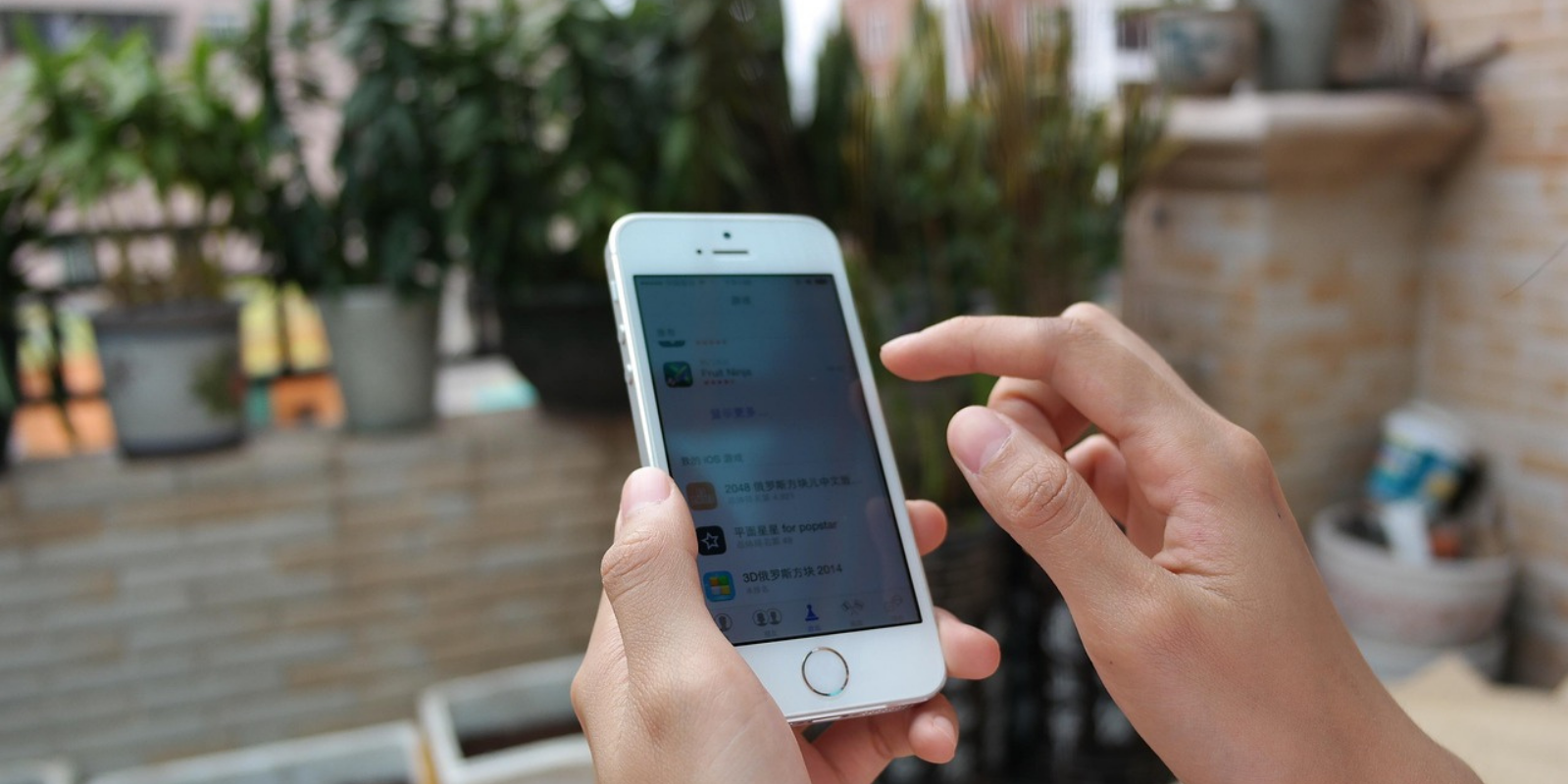
If you’re an iPhone user, you might be wondering why you should switch to Low Data Mode. In this blog, we'll explore its benefits and more.
If you’re an iPhone user, you might be wondering why you should switch to Low Data Mode. In this blog, we'll explore its benefits and more.
If you want to stretch your data plan or cut down on unnecessary internet usage, a low data mode on an iPhone can be a real game-changer. This built-in feature works by reducing background activity, such as automatic updates, app refreshes, and certain visual effects, while connected to either cellular data or Wi-Fi. By doing so, you can lower your data consumption without sacrificing essential online functions, such as messaging, browsing, or email.
In this blog, we’ll dive into what low data mode does, how it impacts your apps and settings, and everything you need to know to get the most out of your iPhone, while keeping your data costs to a minimum.

Photo by Jakob Owens on Unsplash
How Low Data Mode Reduces Data Usage on an iPhone?
When Low Data Mode is turned on, your iPhone automatically disables Background App Refresh. If you’ve ever wondered what is Low Data Mode on iPhone, it’s essentially a setting that reduces background activity to help you conserve data. Apps won’t update their content in the background, so you’ll only see new information when you open them. It also pauses iCloud syncing for features like Photos, Documents, and backups until you’re back on a regular connection.
Streaming services are also affected. Videos and music will play at a lower quality, which uses less data without completely stopping your entertainment. While you might notice slightly reduced clarity, it’s a small trade-off for significant savings on your data usage.
In addition, Low Data Mode on your device limits automatic updates and downloads. App updates, software downloads, and even certain automatic content downloads are delayed until you are connected to unrestricted Wi-Fi. Together, these changes work quietly in the background to keep your data consumption in check.
When to Use Low Data Mode on an iPhone?
Low Data Mode is most useful when you need to stretch a limited data plan. If you’re nearing your monthly cap or trying to avoid extra charges, turning on Low Data Mode on your device can help you stay connected without racking up overage fees.
It’s also a great feature for travel, especially when you’re roaming or using a prepaid SIM with limited data. By reducing background activity, you can save data for essentials like navigation, messaging, and quick searches.
Lastly, Low Data Mode can be handy in areas with slow or unstable connections. By minimizing background tasks, your iPhone focuses bandwidth on what you are actively doing, such as loading a webpage or sending an email, which helps make your experience smoother, even on a weak signal.

How to Enable Low Data Mode on an iPhone
Turning on Low Data Mode on an iPhone is quick and easy. The steps vary slightly depending on whether you want to use it for cellular data, Wi-Fi, or when using Dual SIM. Here’s how to do it:
For LTE/4G Cellular:
Open the Settings app.
Tap Cellular (or Mobile Data).
Select Cellular Data Options.
Turn on Low Data Mode.
For 5G Cellular:
Go to Settings.
Tap Cellular (or Mobile Data).
Choose your 5G Plan.
Select Data Mode and then choose Low Data Mode.
For Wi-Fi:
Open Settings.
Tap Wi-Fi.
Select the network you’re connected to.
Toggle Low Data Mode on.
For Dual SIM Users:
Open Settings.
Tap Cellular (or Mobile Data).
Select the line you want to manage (Primary or Secondary).
Tap Cellular Data Options, then switch on Low Data Mode.
By following these steps, you should be able to control Low Data Mode on your device across different connections, allowing you to manage your data usage more efficiently.
Pros and Cons of Using Low Data Mode on an iPhone
Like any feature, Low Data Mode on an iPhone comes with its advantages and trade-offs. Knowing these can help you to decide if it's really worth switching on.
Pros:
It saves data by stopping unnecessary background activities.
Extends battery life since fewer apps run in the background.
Helps avoid overage charges, ideal for traveling abroad or those with limited data plans.
Works across cellular and Wi-Fi, giving you flexibility in different situations.
Cons:
Slower updates for apps, as content refresh only happens when you open them.
Lower quality streaming for video and music.
Delayed backups and syncs for iCloud Photos, Documents, and other files.
It could affect app functionality if certain background processes are essential.
When used strategically, Low Data Mode can be a smart way to manage data in your iPhone without compromising essential connectivity. But it’s best to know when to toggle it on and off.
Photo by Lukas Gehrer on Pixabay
Combine Low Data Mode with Travel eSIMs
If you’re traveling abroad, it's a good idea to pair Low Data Mode on an iPhone with a reliable travel eSIM to take your data savings to the next level. Low Data Mode minimizes background usage, while an eSIM plan ensures you have affordable mobile data without the hassle of swapping physical SIM cards.
For instance, with a Jetpac eSIM for international travel, you can connect instantly upon arrival and pay only for the data you need. By activating Low Data Mode on an iPhone alongside your eSIM plan, your data lasts even longer, allowing you to make the most of essential travel apps like navigation and messaging, all while keeping roaming charges in check.
Conclusion & Recommendation
Low Data Mode on an iPhone is most useful when you’re on a limited data plan, traveling abroad, or dealing with slow or unstable connections. By limiting background activity, lowering streaming quality, and delaying non-essential updates, you can stretch your data without losing access to what you really need the most.
For even greater control and savings, consider pairing Low Data Mode with a travel eSIM. With a Jetpac eSIM, you can stay connected internationally, pay only for the data you need, and make it last even longer.
By combining Low Data Mode with an eSIM, you can enjoy uninterrupted video calls, navigate unfamiliar streets with Google Maps, and share that swoon-worthy travel selfie, all without worrying about data overages. Together, these tools give you the freedom to use your iPhone efficiently, wherever your travels take you!
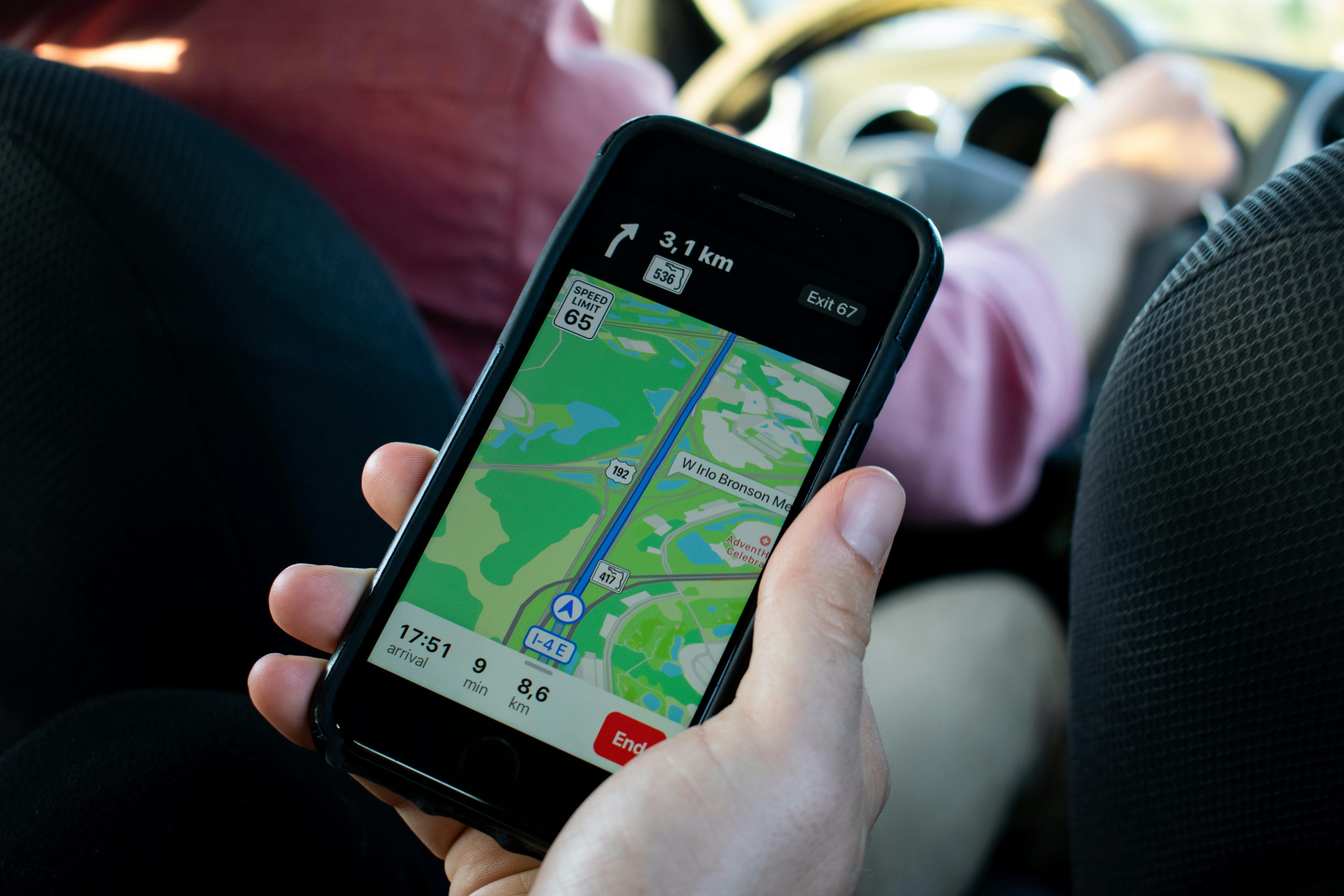
Photo by Jacinto Diego on Unsplash
FAQs
Does Low Data Mode work on Wi‑Fi, too?
Yes, Low Data Mode on an iPhone works on cellular and Wi-Fi connections. When enabled on Wi-Fi, it limits background activities like app refreshes, automatic updates, and iCloud syncing, in the same way it does on cellular data. This helps you conserve data even when connected to Wi-Fi networks with limited bandwidth or data caps. So, if you’re wondering what is Low Data Mode on iPhone, know that it’s designed to help manage data use across all your connections.
Will Low Data Mode affect video or music streaming quality?
Yes, Low Data Mode on an iPhone can lower the quality of video and music streams. Many streaming apps automatically reduce resolution or bitrate when Low Data Mode is active to use less data. While this helps your data last longer, you might notice slightly less sharp video or lower audio quality compared to normal streaming settings.
Can Low Data Mode impact my battery life?
Yes, Low Data Mode on an iPhone can actually help extend your phone's battery life. By limiting background app refresh, pausing automatic updates, and reducing certain visual effects, your iPhone uses less power in addition to saving data. While the battery savings may not be dramatic, it’s a useful side benefit, especially when you’re traveling or away from a charger for long periods.
Can Low Data Mode stop syncing apps like Messages or iCloud Photos?
Yes, Low Data Mode on an iPhone can temporarily pause syncing for certain apps and services. iCloud Photos, Documents, and other iCloud backups may stop syncing until you are on an unrestricted connection. Messages themselves will still be delivered. However, large attachments, such as videos or high-resolution photos, could take longer to send or download.
Why did Low Data Mode turn on automatically?
Low Data Mode on an iPhone can sometimes turn on automatically if your device detects certain conditions. This may happen if you’re using a network with low bandwidth, your carrier has data-saving settings enabled by default, or you’ve previously set Low Data Mode for a specific Wi-Fi or cellular connection and your iPhone remembers that preference. It can also activate if you’re on a limited or prepaid plan where the carrier enforces data-saving measures.
Is Low Data Mode the same on all iPhone models?
No, it’s not exactly the same on all iPhone models. While the core functions remain the same, such as limiting background app refresh, pausing iCloud sync, and reducing streaming quality, the settings layout and options can vary slightly depending on the iOS version and the device’s network capabilities (such as 5G support). If you’re wondering what is Low Data Mode on iPhone, it’s essentially a built-in setting designed to reduce data usage, but its placement and additional options may differ between older and newer models.
Does Android have a similar feature to Low Data Mode?
Yes, Android has a similar feature called Data Saver. It restricts background data usage, pauses certain app updates, and reduces data consumption for streaming or syncing. You can usually turn it on by going to Settings - Network & Internet - Data Saver. Many Android devices also offer per-app data restrictions, giving you more control over which apps can use background data.
Does Low Data Mode affect hotspot usage?
Yes, switching Low Data Mode on an iPhone can affect hotspot usage, but only on the device providing the connection. When Low Data Mode is enabled, it limits background activity and reduces data use on that iPhone, which can slightly restrict the speed or quality of what connected devices receive. However, the devices using your hotspot can still consume data normally, so it’s best to monitor their activity if you’re trying to save data.
Does Low Data Mode help save mobile data when roaming?
Yes, Low Data can help save mobile data when roaming. By reducing background activity, lowering streaming quality, and delaying non-essential updates, it ensures your data is used mainly for what you really need. This can be especially useful when traveling abroad, where roaming charges are often higher and data allowances are more limited.
How do I know if Low Data Mode is on?
You can tell Low Data Mode on an iPhone is on by checking your settings. For cellular, go to Settings - Cellular - Cellular Data Options and see if the toggle for Low Data Mode is enabled. For Wi-Fi, open Settings - Wi-Fi, tap your connected network, and look for the Low Data Mode switch. Some apps may also notify you that background activity is paused, which is another sign the feature is active.
Can Low Data Mode interfere with GPS or Maps usage?
No, Low Data will not interfere with GPS itself, since location services work independently of data usage. However, apps like Google Maps or Apple Maps may load maps and route details more slowly, especially if they need to download new data while you’re navigating. To avoid delays, you can download offline maps in advance. This way, you will have full navigation access without extra data consumption.