
Stay in Control: How to Check Your iPhone's Data Usage
Stay in control of your iPhone’s data. Learn how to check data usage on iPhone, track app consumption, reset stats, and avoid surprise roaming fees with smart tips and eSIM solutions like Jetpac.

Stay in control of your iPhone’s data. Learn how to check data usage on iPhone, track app consumption, reset stats, and avoid surprise roaming fees with smart tips and eSIM solutions like Jetpac.
Nobody likes getting hit with surprise data charges. Whether you're at home or traveling abroad, knowing how to check data usage on iPhone is important for staying within your plan limits and avoiding costly overages.
It’s important to monitor your iPhone’s data consumption, especially when you are traveling internationally. One day of heavy data usage without tracking can result in hundreds of dollars in roaming fees. However, there is some good news. Learning how to check data usage on iPhone is simple with built-in tools to help you monitor exactly how much data you're using.
For travelers looking to avoid these extra charges, using an eSIM like Jetpac helps you manage costs better by providing transparent pricing and easy usage tracking without the surprise bills that come with traditional roaming.
What is Data Usage on iPhone?
Data usage on your iPhone refers to the amount of cellular data your device consumes when it's not connected to Wi-Fi. This includes everything from checking emails and browsing social media to streaming videos and using navigation apps.
Your iPhone tracks two types of data separately: cellular data (from your mobile carrier) and Wi-Fi data. The cellular data is what counts toward your monthly plan and what you need to monitor to avoid overages.
For international travelers, understanding how to check data usage on iPhone is extremely important. When you're roaming or using an eSIM in another country, every megabyte counts. Apps that seem harmless at home, like automatic photo backups or social media feeds, can quickly eat through your travel data package.
How to Check Data Usage on iPhone (Step-by-Step)
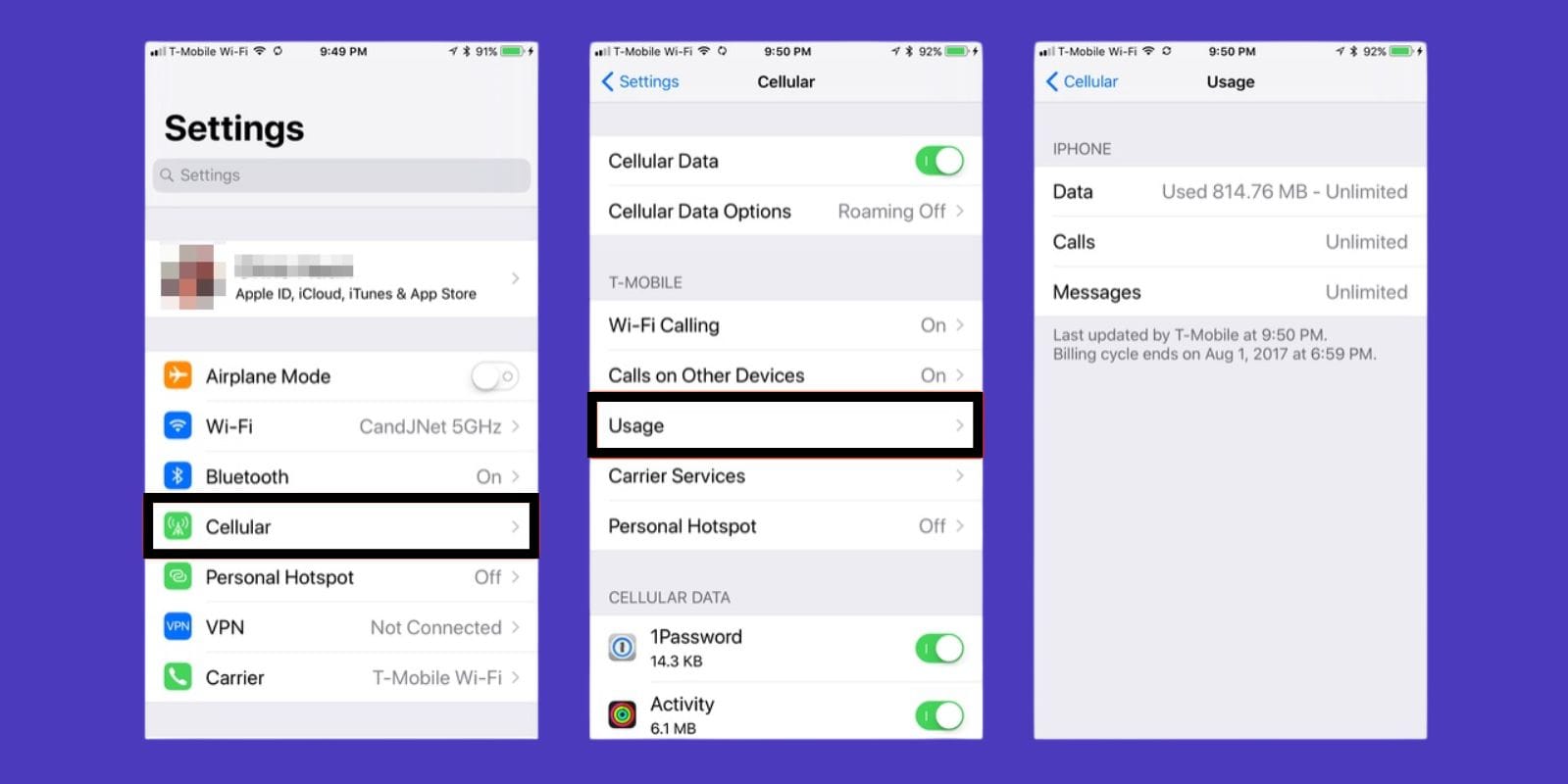
Learning how to check data usage on iPhone is a simple process once you know where to look. If you want to check data usage iPhone effectively, here's exactly how to do that:
Open the Settings app on your iPhone
Scroll down and tap Cellular (or Mobile Data if you're outside the US)
Look at the top section, where it shows "Cellular Data Usage"
You'll see your current period usage displayed
This screen shows you exactly how much data you've used since the last time you reset your statistics. The numbers include both your current billing period and total usage.
To get accurate tracking that matches your billing cycle, you should reset data usage iPhone statistics at the start of each month or trip. Here's how to reset data usage iPhone statistics:
Stay in the Cellular or Mobile Data settings
Scroll to the bottom of the page
Tap Reset Statistics
Confirm by tapping Reset Statistics again
Reset your stats right before you start traveling so you can track exactly how much data you use during your trip.
How to Check Data Usage for Specific Apps
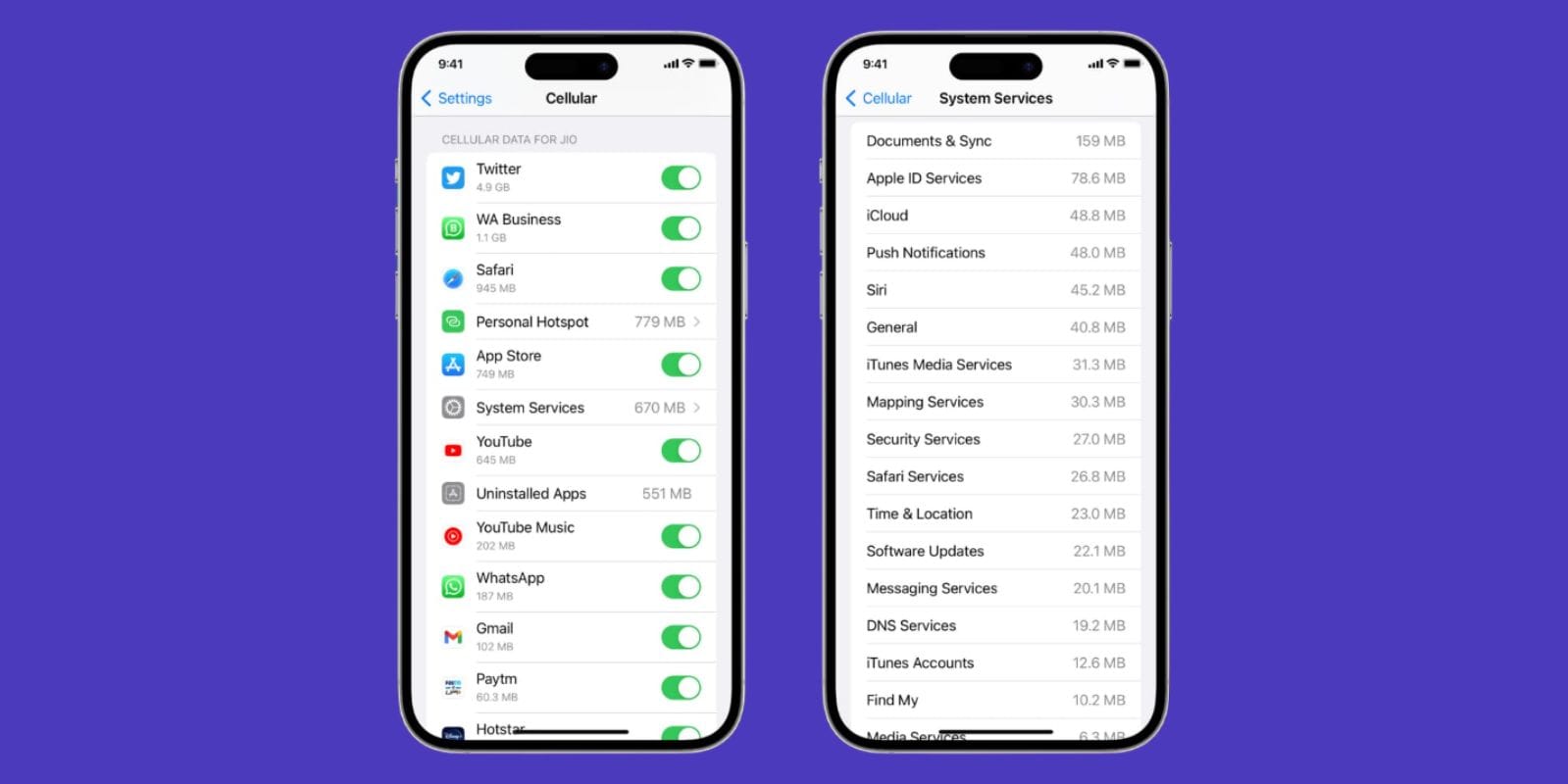
One of the most useful features for managing your data is seeing which specific apps consume the most data. Your iPhone data usage settings show you a breakdown by app, making it easy to identify data hogs.
In the same Cellular or Mobile Data settings screen, scroll down past the usage statistics. You'll see a list of all your apps with the amount of data each one has used during the current period.
This breakdown is incredibly helpful for travelers. You might discover that your maps app uses far less data than you expected, while that social media app you check occasionally is eating through gigabytes. Video streaming apps, photo backup services, and social media platforms typically use most of your data.
You can also turn off cellular data for specific apps right from this screen. Simply toggle off any apps you don't want using cellular data when you're not using Wi-Fi.
How to Check Data Usage via Carrier App
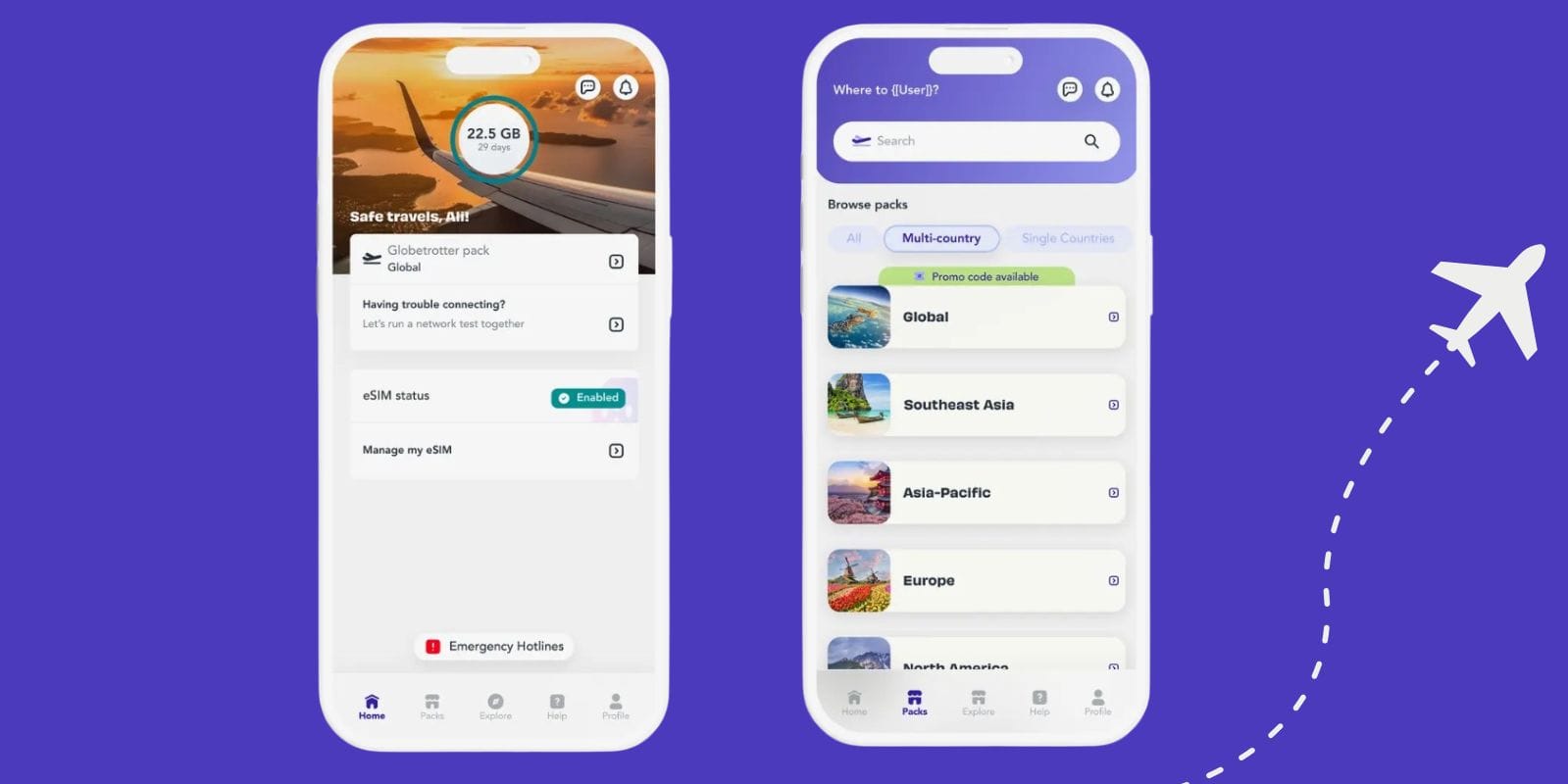
While your iPhone's built-in tracking is useful, your carrier or eSIM provider often offers more detailed usage information through their own apps or online dashboards.
Most major carriers have mobile apps that show real-time usage, remaining data allowances, and billing information. These apps often provide more accurate information than your iPhone's built-in feature because they reflect what your carrier is actually billing you for.
For travelers using eSIM services, this becomes even more valuable. With Jetpac's eSIM, you can easily track your data usage in real-time through their app, giving you precise control over your spending limit while abroad.
Tips to Avoid High Data Usage While Traveling
Managing your data while traveling doesn't mean going offline completely. With the correct settings and habits, you can stay connected without breaking the bank.
Turn on Low Data Mode
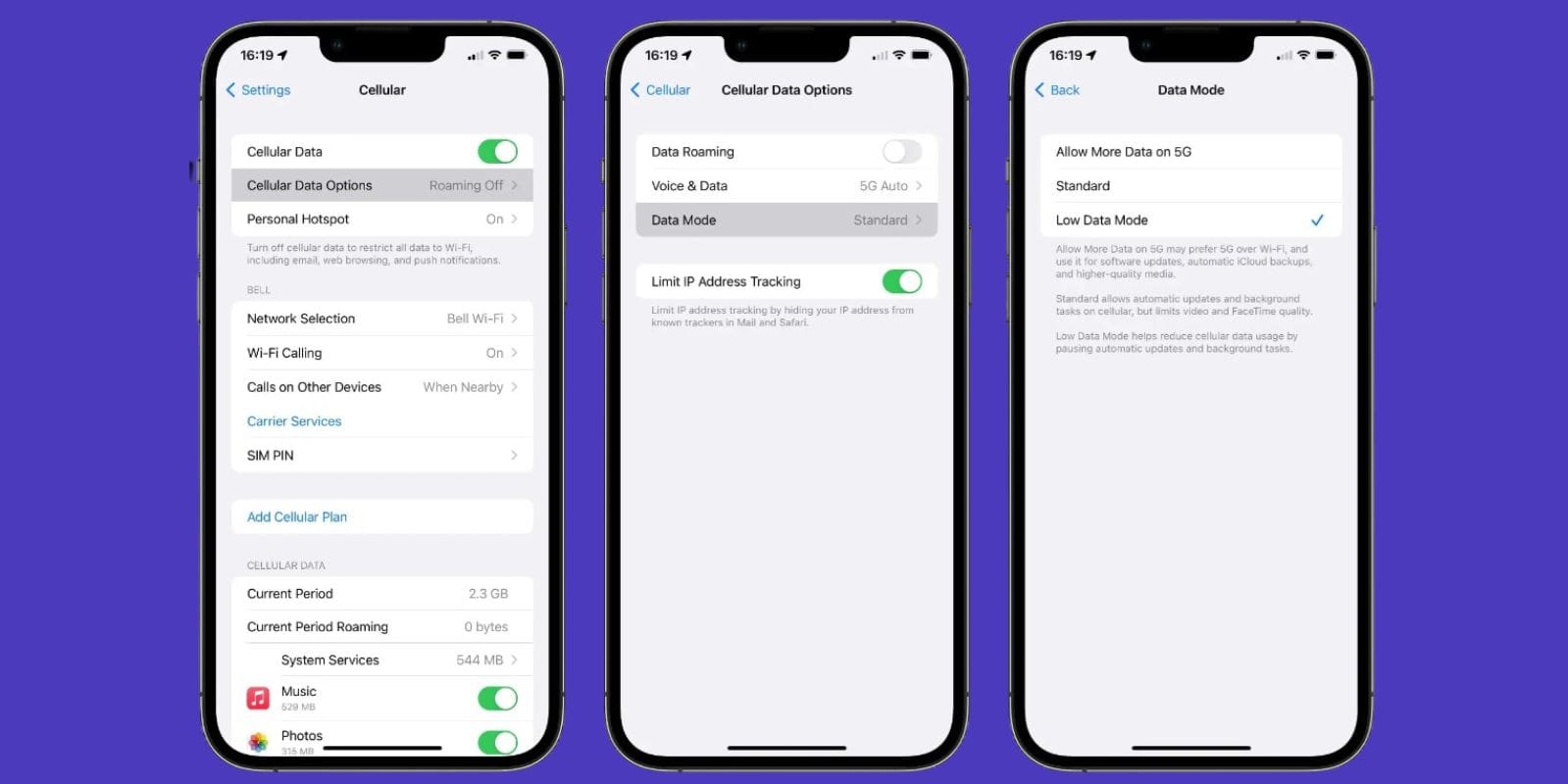
Low Data Mode is built into iOS and reduces your data usage across the entire system. To enable it:
Go to Settings > Cellular (or Mobile Data)
Tap Cellular Data Options (or Mobile Data Options)
Turn on Low Data Mode
This setting reduces automatic downloads, pauses background app refresh, and decreases video quality to save data.
Download Offline Maps
Before you travel, download maps of your destination for offline use. Google Maps, Apple Maps, and other navigation apps let you download entire cities or regions for offline access. This can save hundreds of megabytes during your trip.
Use Messaging Instead of Video Calls
Text messages and voice calls use significantly less data than video calls. When possible, stick to messaging apps like WhatsApp or iMessage rather than FaceTime or Zoom calls.
Choose the Right eSIM Plan
Instead of paying expensive roaming charges, consider buying a Jetpac eSIM plan that fits your expected usage. Many travelers find that a moderate data plan with the option to top up if needed costs far less than traditional roaming.
Take Advantage of eSIM-Specific Benefits
Some eSIM providers offer unique benefits that can help you save data. For example, Jetpac users get zero-cost WhatsApp access even after their main data runs out, letting you stay in touch without worrying about overages. If your iPhone supports eSIM, it is one of the best ways to stay connected when traveling internationally.
FAQs
How do I check my iPhone data usage step by step?
Go to Settings > Cellular > view your usage statistics at the top. For detailed app breakdowns, scroll down to see per-app usage. Reset statistics at the start of your billing cycle for accurate tracking. This is the basic method for how to check data usage on iPhone and allows you to check data usage iPhone anytime you need.
Can I see data usage per app on iPhone?
Yes, you can. Go to Settings > Cellular, scroll down to see exactly how much data each app has used. You can also turn off cellular data for specific apps from this screen. This feature in iPhone data usage settings helps you identify which apps consume the most data.
Does iPhone automatically reset data usage every month?
No, iPhone doesn't automatically reset data usage statistics. You need to manually reset them by going to Settings > Cellular > Reset Statistics at the bottom of the page.
How do I reset my iPhone data usage to match my billing cycle?
Reset your statistics on the same day your billing cycle starts each month. Go to Settings > Cellular > scroll to the bottom > Reset Statistics. Set a monthly reminder to do this consistently.
Can I check data usage separately for eSIM and physical SIM?
Yes, if you have a dual SIM setup, you can view data usage iPhone for each line separately. In Settings > Cellular, you'll see separate sections for your Primary and Secondary lines with individual usage statistics.
How do I know if I'm using data from my eSIM or primary SIM?
In your Cellular settings, you can see which line is set for cellular data. You can also set different lines for voice calls and data usage, and view usage statistics for each line separately.
Does iPhone track Wi-Fi usage along with cellular data?
No, the cellular data usage statistics only track mobile data, not Wi-Fi usage. Wi-Fi usage doesn't count toward your cellular plan limits.
What happens if I go over my eSIM data plan limit?
This depends on your eSIM provider. Some cut off service, others charge overage fees, and some (like Jetpac) offer easy top-up options or continue basic services like WhatsApp access.
How do I enable Low Data Mode on iPhone?
Go to Settings > Cellular > Cellular Data Options > turn on Low Data Mode. This reduces background activity and can significantly decrease your data usage.
Which apps consume the most data on iPhone while traveling?
Typically, video streaming (Netflix, YouTube), social media apps with auto-playing videos, photo backup services (Google Photos, iCloud), and music streaming apps. To check data usage iPhone for specific apps, go to Settings > Cellular and scroll down to see the breakdown.
Can I get data usage alerts on iPhone?
iPhone doesn't have built-in usage alerts, but many carrier apps provide notifications when you approach your limit. Some other apps, like the one from Jetpac, also offer usage alerts and tracking.
Is there an app to track my iPhone data usage more accurately?
While iPhone's built-in tracking is quite accurate, carrier apps often provide real-time data that matches your actual bill more precisely. Third-party apps like DataMan or GlassWire can also provide additional tracking features. Understanding how to check data usage on iPhone using these different methods gives you multiple options for monitoring your data consumption.
How can I check my remaining eSIM data with Jetpac?
Log in to your Jetpac account through their app. You'll see real-time usage statistics, remaining data allowances, and the ability to top up your plan as needed. This is another way to view data usage iPhone when using eSIM services.