Why Are My Messages Green When They Should Be Blue on iPhone? 6 Reasons & Easy Fixes
Green messages on iPhone mean the message was sent through RCS, SMS, or MMS instead of iMessage. Check whether the recipient uses iMessage, turn iMessage on, verify Send & Receive settings, check your internet connection, restart your iPhone, and update iOS to turn eligible messages blue.

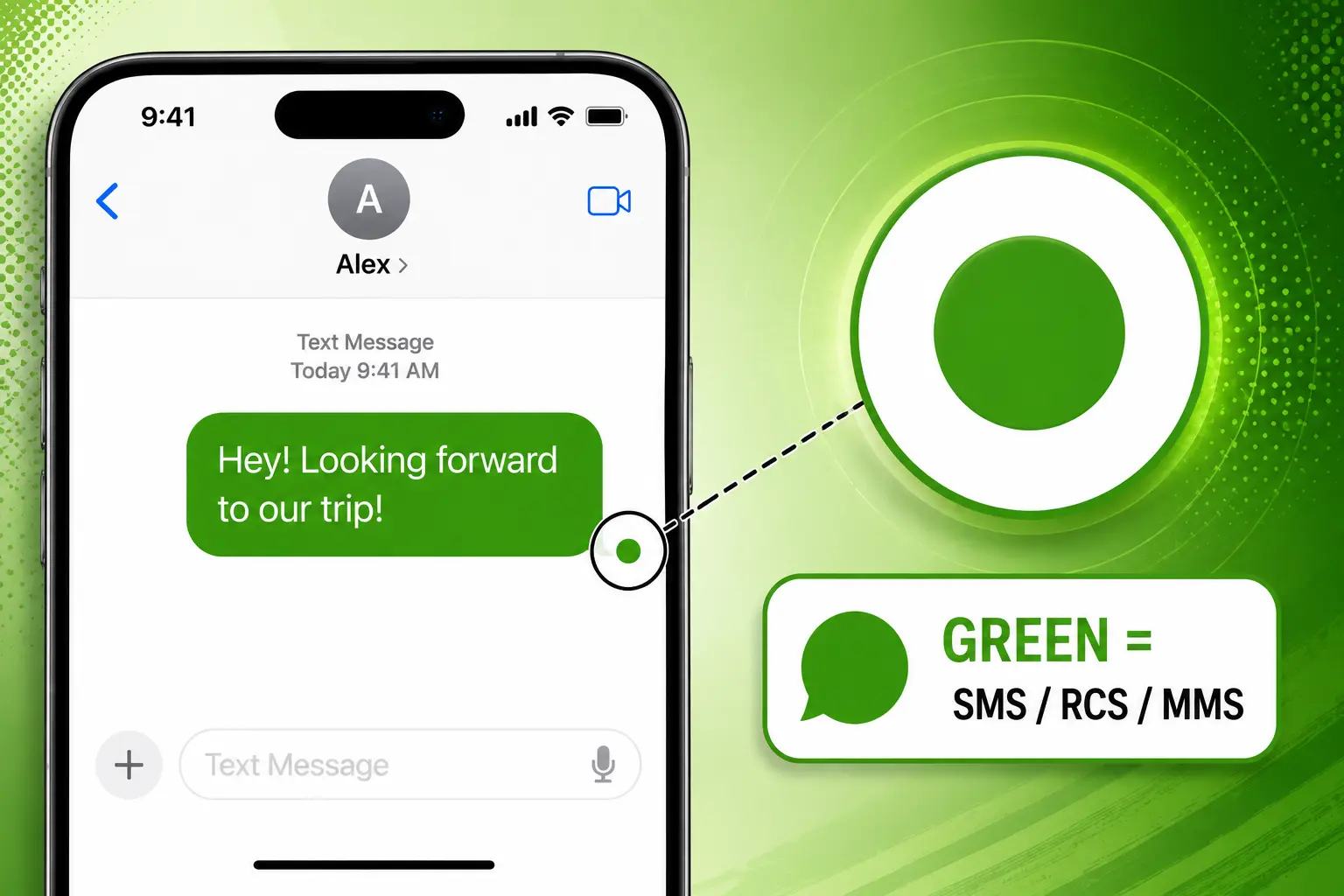
Green message bubbles on your iPhone mean the message was sent using RCS (Rich Communication Services), SMS (Short Message Service), or MMS (Multimedia Messaging Service) instead of Apple's iMessage service, not that anything is broken.
If you have been asking “why are my messages green on iPhone?” or noticed a conversation that used to be blue turn green, the short answer is that the message did not go through iMessage.
This can happen because the recipient is using a non-Apple device, iMessage is turned off, there is a temporary iMessage issue, or there is a settings problem after switching devices.
This blog covers the six most common reasons and gives you step-by-step fixes for each one.
Quick Answer: Why Are My iPhone Messages Green?
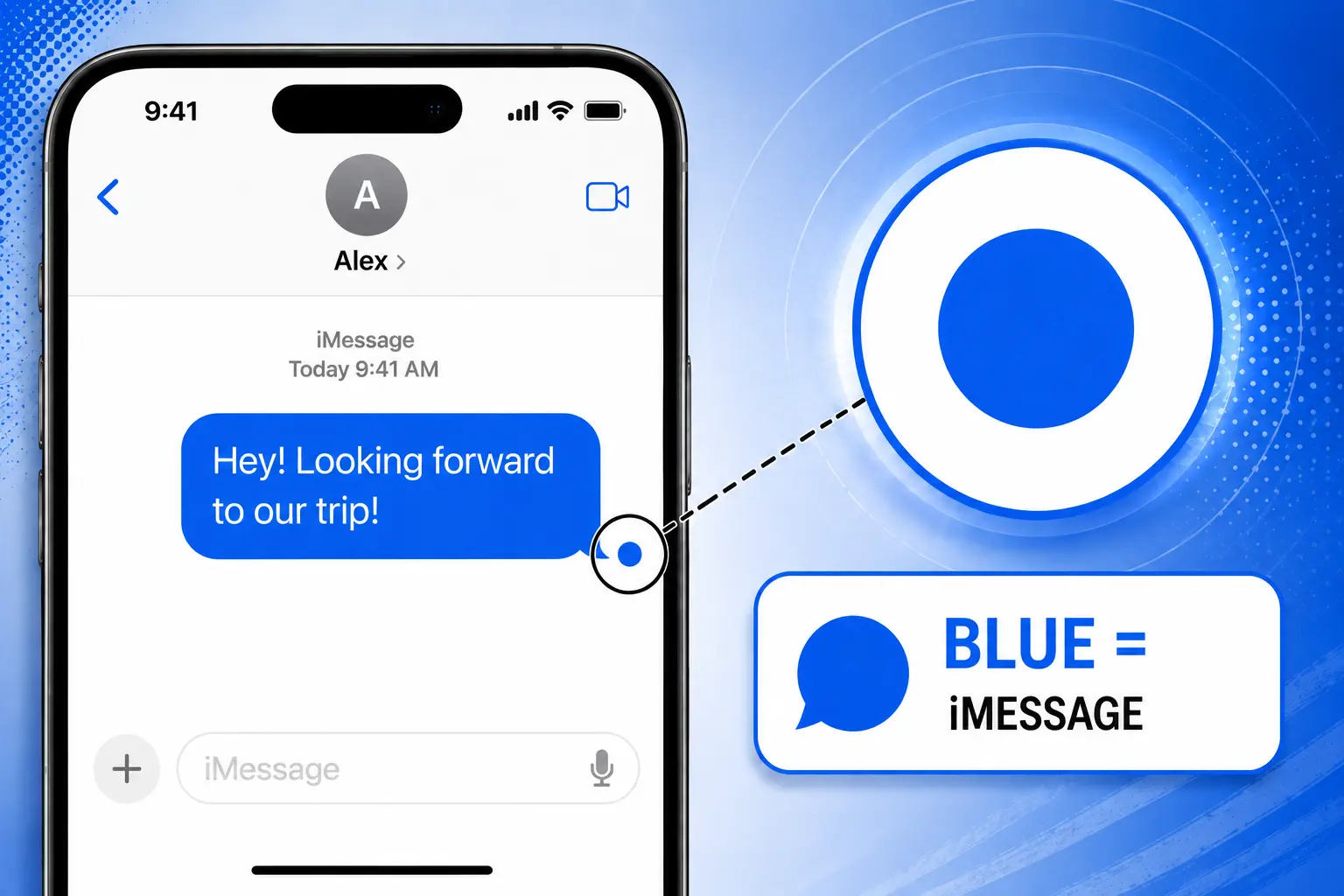
Green bubbles mean a message was sent through RCS, SMS, or MMS rather than iMessage. Blue bubbles always mean iMessage.
If you are asking "why are my text messages green?", or "why are my messages green when they should be blue?", the most common causes are: you're messaging someone on Android, iMessage is turned off on your iPhone, iMessage is disabled on the other person's iPhone, iMessage is temporarily unavailable, your Messages settings need updating after setting up a new iPhone, or the wrong phone number or email is selected for iMessage.
Apple's current support guidance specifically lists the first four causes and recommends checking your iMessage and Send & Receive settings if you run into trouble.
What Does the Green Text Message Mean on iPhone?
So what does the green text message mean, exactly? It comes down to which service sent it:
Green color text on iPhone doesn't automatically mean SMS anymore, since RCS messages appear the same way. Apple added RCS support starting with iOS 18, so RCS and SMS/MMS are both shown as green, but they are not the same service under the hood.
Read more: Want to reduce how much mobile data your iPhone uses? Explore Low Data Mode on iPhone: What It Does and When to Use It for when to turn it on and which background activities it limits.
6 Reasons Why Your Messages Are Green on iPhone
Each of these explains what's behind why are my messages green on iPhone, how to recognize it, and what to do about it.
1. You're Messaging Someone Who Doesn't Have an Apple Device
Conversations with Android users generally do not use iMessage, so messages appear green through RCS or SMS/MMS. This is normal behavior, not a problem with your iPhone.
Tip: If the recipient recently switched from iPhone to Android, a conversation that used to be blue may now stay green permanently.
2. iMessage Is Turned Off on Your iPhone
If iMessage is disabled, your iPhone falls back to RCS or SMS/MMS whenever it can. The current path to check is Settings → Apps → Messages → iMessage.
Tip: Make sure the iMessage toggle is actually switched on before trying anything more complicated.
3. iMessage Is Turned Off on the Other Person's iPhone
Even when both people own iPhones, messages can still appear green if the recipient has turned off iMessage on their end. This is exactly what's behind the common question of “why are my texts green when texting another iPhone?”
Tip: Ask the other person to check Settings → Apps → Messages → iMessage on their own device.
4. iMessage Is Temporarily Unavailable
A temporary iMessage service issue or connectivity problem can force a message through another method instead. It helps to tell apart three different causes: your internet connection, an iMessage service issue, or a carrier connectivity problem.
Tip: Check Apple's System Status page before changing multiple settings on your phone.
5. Your Messages Settings Need Updating After Setting Up a New iPhone
If you recently bought a new iPhone, transferred data from an old one, changed your phone number, switched to a new SIM (Subscriber Identity Module) or eSIM, or restored your device, Messages may need to be set up again.
Apple has specifically noted that on iOS 26, iMessage does not always activate automatically if an eSIM is installed after the initial setup process, which can cause Not Delivered errors or green bubbles even when messaging other iPhone users.
Tip: Check Send & Receive under Settings → Apps → Messages → Send & Receive, and confirm the right phone number or email is selected. If you added an eSIM after setup, toggle iMessage off and back on to force it to recognize the new number.
Read more: Switching between physical SIM and eSIM? Explore Do iPhones Have SIM Cards or eSIM? Everything You Need to Know to understand how each option works and what it means for your iPhone.
6. Your iMessage Send & Receive Settings Are Incorrect
iMessage can be turned on while the wrong phone number or email address is selected for starting new conversations, which causes messages to send incorrectly or fail to appear as iMessage.
Tip: Go to Settings → Apps → Messages → Send & Receive and confirm your phone number is selected under "start new conversations from."
Read more: Setting up an eSIM on a new iPhone? Explore Which iPhones Support eSIM? Full Compatibility List for 2026 to check whether your model supports eSIM and what to expect during setup.
How to Turn Green Messages Blue on iPhone
Work through these steps in order rather than jumping straight to the last one.
Check whether the recipient uses iMessage
If they're on Android, the conversation will not become an iMessage conversation no matter what you change.
Turn on iMessage
Settings → Apps → Messages → iMessage.
Check Send & Receive
Settings → Apps → Messages → Send & Receive, and make sure the correct phone number or email is selected.
Check your internet connection
Try switching between Wi-Fi and cellular data.
Restart your iPhone
A simple restart resolves more of these issues than you would expect.
Check Apple's System Status page
Use this if iMessage suddenly stopped working across the board.
Update iOS
If the issue continues, check whether a software update is available.
Not every green conversation can be turned blue. If you've worked through all seven steps and you're still asking "why are my messages green on iPhone?", the recipient likely isn't using iMessage at all, and the bubble will stay green no matter what you fix on your end.
Why Are My Messages Green When They Should Be Blue?
If you already know the recipient has an iPhone and you're staring at green color text on an iPhone with no obvious cause, this quick diagnostic narrows things down faster than working through the full list above:
This table is useful if you already suspect a specific cause, since it points you to a check instead of making you read through all six reasons again.
Read more: Moving your eSIM to a new iPhone? Explore How to Transfer eSIM to New iPhone From iPhone or Android for the available transfer methods and setup steps.
Can You Change the Text Message Color on iPhone?
If you are wondering "how do you change the text message color on iPhone?", the answer is that you can't simply pick blue or green as a personal preference in Apple's native Messages app. The color reflects how the message is actually being sent, not a style setting.
If a conversation is eligible for iMessage, it appears blue. If it uses RCS, SMS, or MMS, it appears green. This also answers "how to turn iPhone messages black or any other color?" There's no built-in option for it in Apple's Messages app.
The real fix is not changing the color directly; it's getting iMessage working for that conversation if it's supported.
What Happens When You Send a Green Message?
If you're still wondering "why are my text messages green?" after working through the six reasons above, remember it comes down to which service actually sent it.
A green message can be RCS, SMS, or MMS, and it uses a different messaging service than iMessage entirely. Any green-colored text on iPhone falls into one of these two categories, RCS or SMS/MMS, and figuring out which one matters if you want to know what features are available.
RCS on iPhone supports richer features than traditional SMS/MMS, including read receipts, typing indicators, and higher-quality media, though support depends on your carrier and region.
Traditional SMS/MMS is more limited, with lower-quality media and no read receipts. Not all green messages have the same features, since RCS and SMS/MMS are genuinely different services that just happen to share the same bubble color.
Read more: Travelling to Europe without wanting a roaming bill? Explore How to Use an iPhone in Europe Without Roaming Charges? for practical ways to stay connected while keeping roaming costs down.
Stay Connected With an International eSIM
If you travel and use an international eSIM, it's worth paying attention to your phone number, cellular data, and iMessage settings, especially right after switching lines or setting up a new device, since that's exactly when green bubbles tend to show up.
Is iMessage free internationally? Yes, over Wi-Fi or any working data connection, but that only holds if iMessage is actually configured correctly on the new line.
An eSIM for international travel keeps your data working while you decide which line stays active for messaging, depending on your setup and carrier.
A travel eSIM does more than just add data; it also affects which line stays active for iMessage, so it's worth checking your settings right after activation rather than assuming everything carried over.
Read more: Planning to use an eSIM abroad? First check whether your iPhone is unlocked. Explore How to Check if an iPhone is Unlocked (For Travel & eSIM Use) for simple ways to verify it.
If you're comparing options, Jetpac is a solid pick for the best eSIM for international travel, covering 200+ destinations at up to 70% cheaper than standard roaming, with automatic network switching so you're not stuck troubleshooting settings mid-trip.
Setting up a travel eSIM the right way from the start avoids most of the green-bubble surprises covered in this blog.

FAQs
Can you turn green messages black on iPhone?
No. The message was sent using RCS, SMS, or MMS instead of iMessage, and that's what determines the bubble color, not a text or background setting. If you're looking up how to turn iPhone messages black, there isn't a setting for that either, since the color is tied to the messaging service, not a manual choice.
Why are my texts green when texting another iPhone?
The other person's iMessage may be disabled, iMessage may be temporarily unavailable, or their Messages settings may need attention after a device change.
Does a green message mean I'm blocked?
Not reliably. A green bubble alone cannot tell you whether you've been blocked. It's just as likely to mean iMessage is off, unavailable, or that they're using Android.
Do green messages mean they were delivered?
Not necessarily. Delivery behavior depends on whether the message uses RCS, SMS, or MMS and which delivery indicators are available for that service, so a green bubble on its own isn't proof of delivery.
Can I send a blue message to an Android phone?
No. iMessage only works between Apple devices, so a conversation with an Android phone uses RCS or SMS/MMS and stays green regardless of your settings.
How do I turn iMessage back on?
Go to Settings → Apps → Messages → iMessage and switch it on, then check Send & Receive to confirm the right phone number or email is selected.
Why are my iPhone messages green but FaceTime still works?
Messages and FaceTime are configured separately, so one working normally does not guarantee the other is set up correctly. It's worth checking iMessage and Send & Receive specifically rather than assuming your whole Apple ID setup is fine.
Disclaimer
This blog is for general informational and troubleshooting purposes only. Settings menus, iOS features, and Apple's official guidance can change between software updates. Always check Apple's current support documentation or System Status page for the most accurate, up-to-date steps. Jetpac is not responsible for any inaccuracies, changes, or losses arising from reliance on this information.
Get connected as soon as you land with a Jetpac travel eSIM.