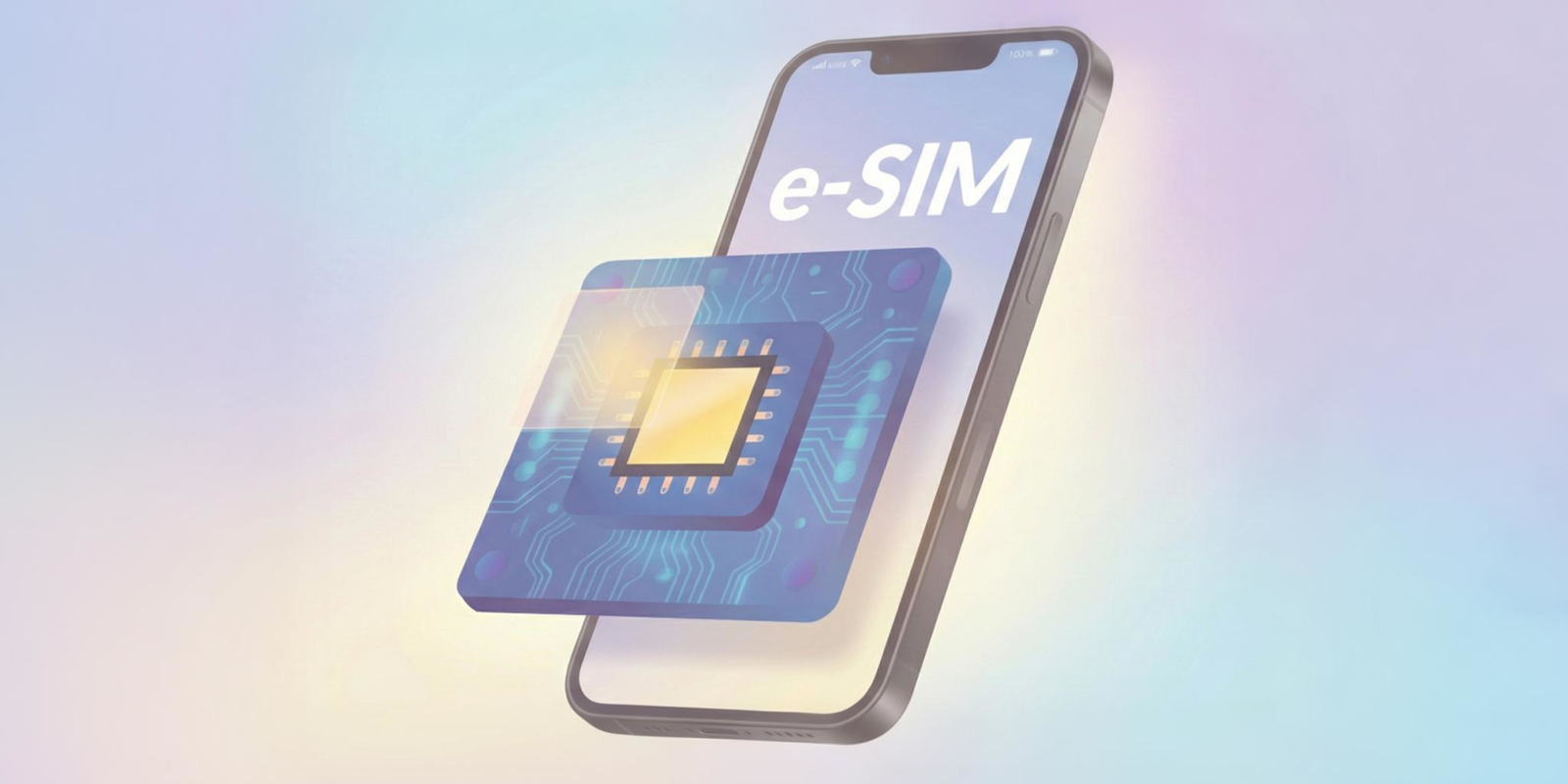
Does iPhone 12 Support eSIM? Here’s the Real Answer
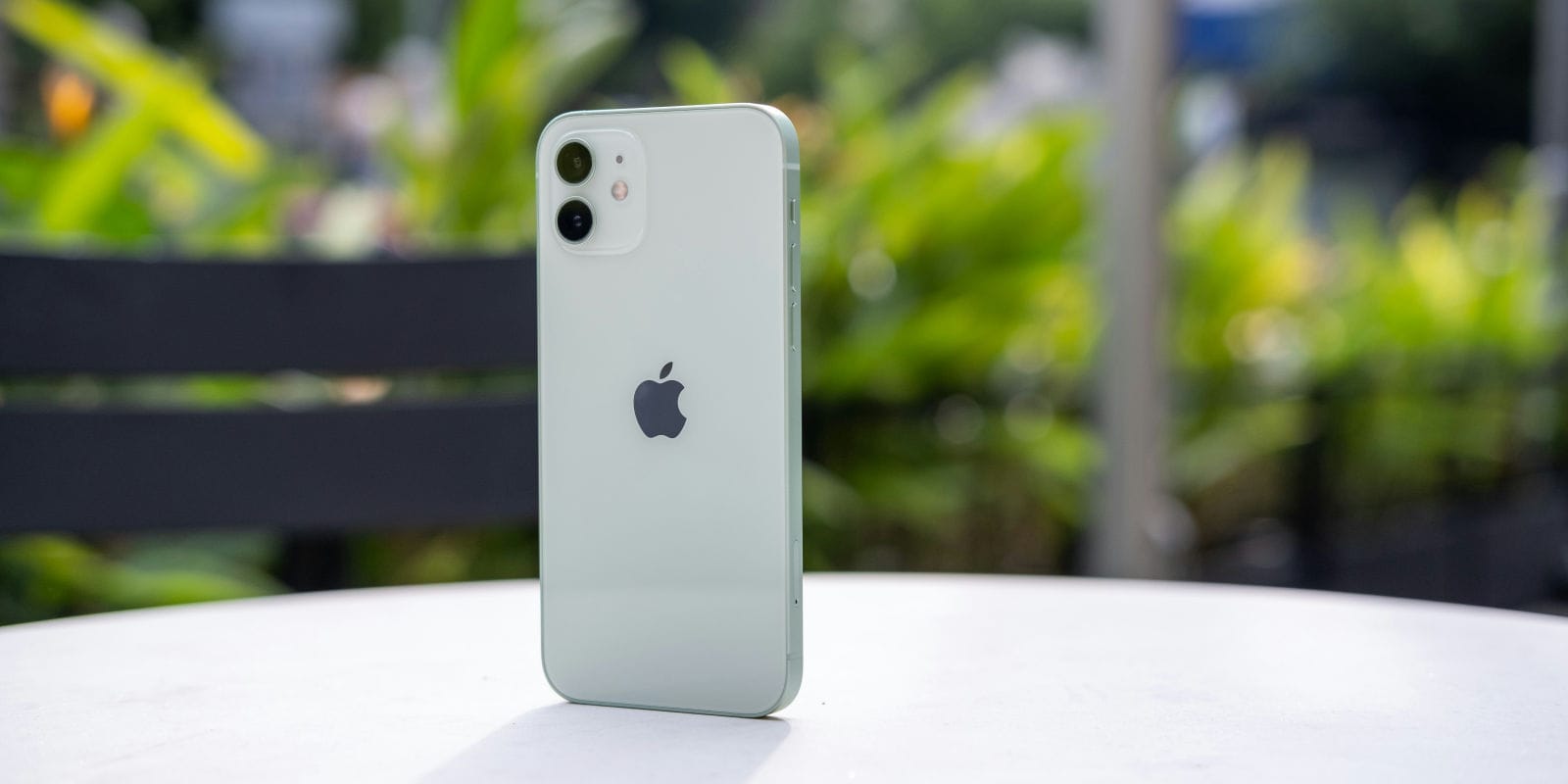
The iPhone 12 supports up to 8 eSIMs across all models, making it simple to run dual numbers, switch carriers, and stay connected while traveling. With easy activation and wide compatibility, eSIM gives the iPhone 12 a clean and flexible setup. Using an international eSIM keeps your travel experience smooth from the moment you land.
iPhones today are built for simple setups and easy switching between networks, especially for people who travel or manage more than one number. One of the biggest shifts has been the move from physical SIM cards to digital eSIMs. This has led many users to ask: Does iPhone 12 support eSIM, and how does it actually work on this model?
The short answer is that the entire iPhone 12 lineup supports eSIM, but how it functions can vary based on your carrier, your region, and how you plan to use it. For frequent travelers, using an international eSIM or a plan from the best eSIM for international travel, such as Jetpac, can help you avoid heavy roaming charges and save up to 70% compared to traditional roaming.
Below is a simple, clear guide that covers all the details for iPhone 12 eSIM support.
So, does iPhone 12 support eSIM?
Yes. Every iPhone 12 model is eSIM capable. This includes:
iPhone 12
iPhone 12 mini
iPhone 12 Pro
iPhone 12 Pro Max
Apple added digital SIM support across the entire series, which means your device can run a mobile plan without inserting a physical SIM card. Most major carriers support iPhone 12 eSIM, but some smaller or regional carriers may still require a physical SIM.
If you are wondering if iPhone 12 supports eSIM or is iPhone 12 eSIM compatible in your country, it usually depends on your carrier and whether they offer QR activation.
Can the iPhone 12 use eSIM and a physical SIM together?
Yes. All iPhone 12 models support one eSIM and one physical SIM at the same time, which means you can use two numbers on a single device. This dual SIM setup is helpful if you want separate work and personal lines without carrying two phones.
Many users wonder if the iPhone 12 can hold two numbers. It can. Your physical SIM handles one number, and the eSIM handles the other.
For travelers, this is even more practical. You can keep your primary number active for essential calls and messages while adding an international eSIM for data on the go. This keeps you connected abroad without expensive roaming charges or needing to replace your primary SIM.
Is iPhone 12 eSIM compatible worldwide?
For the most part, yes. The iPhone 12 is compatible with eSIM in most countries, especially regions where carriers support QR code activation.
Some countries still do not offer eSIM or limit it to postpaid plans, so compatibility depends on local carriers. If you travel frequently, the best eSIM for international travel can bypass these regional restrictions and give you instant connectivity without visiting a store.
For short trips or multi-country travel, an international eSIM usually works smoothly than relying on local SIMs.
Why your iPhone 12 may not show eSIM?
If your device is not displaying the eSIM setup option, these are the most common reasons:
Your iPhone is locked to a carrier that has not enabled eSIM
Your iOS version is outdated
Your carrier does not support iPhone 12 eSIM
The QR code you received has not been activated yet
You are in a region where iPhone 12 support for eSIM is still limited
Restarting your phone or updating iOS often helps, but carrier restrictions are the most frequent issue.
How to activate eSIM on iPhone 12?
To activate an eSIM on an iPhone 12, you need to scan a QR code provided by your carrier or manually enter the eSIM details. The process is straightforward and can be completed in a few steps directly from your iPhone settings.
Steps to Activate eSIM
Open the Settings app on your iPhone 12.
Tap Cellular.
Select Add Cellular Plan.
Use your iPhone’s camera to scan the QR code provided by your carrier. If you don’t have a QR code, select Enter Details Manually and input the information provided by your carrier.
Follow the on-screen instructions to complete activation. You may be asked to name your cellular plan and choose which line to use for calls and data.
Important Notes
Make sure your iPhone 12 is connected to Wi-Fi or cellular data during the activation process.
If you’re switching from a physical SIM, you may need to contact your carrier to transfer your number to the eSIM.
Not all carriers support eSIM in every country, so check with your provider before starting.
How to convert your physical SIM to eSIM on iPhone 12?
You can convert your existing physical SIM to an eSIM directly through your phone if your carrier supports the feature.
Here’s how:
Go to Settings
Tap Cellular
Select Convert to eSIM
Follow the instructions
Not all carriers support dual SIM activation through eSIM yet. In some cases, you may need to request a QR code or activation details directly from your provider. This applies to all models in the lineup, including the iPhone 12 mini and iPhone 12 Pro.
If you are unsure, check whether your carrier supports converting a physical SIM to an eSIM on the iPhone 12. This will confirm if your device and their system are fully compatible.
How many eSIMs can the iPhone 12 store?
The iPhone 12 can store 8 eSIM profiles, but only one eSIM can be active at a time, which can be used alongside a physical SIM card. This means you can keep several travel profiles saved and switch between them easily.
This feature makes the iPhone 12 one of the more flexible devices for people who use eSIM for international travel.
Simple Fixes for eSIM Issues on iPhone 12
If your eSIM is not working as expected on an iPhone 12, try these quick steps:
Restart your iPhone to clear minor glitches.
Reset network settings at Settings > General > Reset > Reset Network Settings.
Update to the latest iOS version for improved eSIM compatibility.
Turn Airplane Mode on and off to refresh your network connection.
Check your eSIM plan under Settings > Cellular and toggle the line off and back on.
Contact your carrier if activation or network issues continue.
If the phone freezes, do a force restart by pressing volume up, volume down, then holding the side button until the Apple logo appears.
These solutions resolve most activation and connectivity problems on the iPhone 12.
Best eSIM options for travel on iPhone 12
If you travel often, a Jetpac international eSIM is easier than buying local SIM cards in each country. It gives you instant connectivity the moment you land.
Why Jetpac is a strong choice for iPhone 12 travelers
Free access to WhatsApp chat, Google Maps, and Uber, even when your data runs out, so you can still stay in touch, navigate, or book a ride
In-app voice calling in 50+ countries, including calls to landlines and non-app numbers, with packs starting at $1.99 for 5 minutes
Unlimited hotspot sharing for laptops, tablets, or helping a travel companion get online
Clear pricing with no hidden fees or roaming surprises, helping most travelers save up to 70% compared to traditional roaming
A single eSIM that works in 200+ destinations with instant activation
Automatic connection to the strongest network for steady coverage
Fast and reliable 4G or 5G speeds where available
A simple money-back guarantee for added confidence
Priority support available 24/7 via email and WhatsApp.
FAQs
How do I activate eSIM in my iPhone 12?
Go to Settings, tap Cellular, choose Add eSIM, and scan your QR code. If your carrier supports iPhone 12 eSIM support, setup takes only a few minutes.
How do I convert my iPhone 12 to eSIM?
Use Settings, Cellular, and Convert to eSIM. If the option does not appear, your carrier may not support conversion yet. In that case, request a QR code activation.
Why is my iPhone 12 not showing eSIM?
Your carrier may not support eSIM, or your phone may be locked or running an outdated iOS version. In some regions, does iPhone 12 supports eSIM is dependent on carrier technology, not the device.
How many eSIMs does an iPhone 12 have?
You can store up to 8 eSIM profiles, but use one eSIM and one physical SIM at the same time.
Disclaimer
All details about device features, compatibility, and pricing are based on publicly available information. Actual support may vary by carrier and region. This content is for educational purposes only. Jetpac is not responsible for changes in device features, network performance, or carrier policies.