
How Much Data Does iMessage Use? Full Breakdown 2025
This guide will explain how much data iMessage uses in 2025. Learn how texts, photos, and videos affect usage, & tips to save data when using an eSIM abroad.
This guide will explain how much data iMessage uses in 2025. Learn how texts, photos, and videos affect usage, & tips to save data when using an eSIM abroad.
Most iPhone users never think about how much data iMessage uses. You open your phone, send a few texts, maybe share a photo or two, and that’s that. But when your data plan starts running low or you’re traveling abroad, it can finish up your entire package.
So, how much data does iMessage use really? Not as much as you might think. Text messages are tiny, and even pictures or short videos use far less data than social media apps or streaming. Still, if you’re relying on mobile data or using an eSIM for iPhone, you should know exactly what’s happening in the background.
This 2025 breakdown covers what is iMessage on iPhone, what uses the most data, and a few easy ways to stay connected while keeping usage low, especially if you’re on an eSIM for international travel and want to avoid international roaming charges.
Does iMessage Use Data?
Yes, iMessage does use data, but usually such a small amount that you’ll barely notice it. Instead of sending messages through your phone carrier like regular texts, iMessage sends everything through Apple’s servers using the internet. That means it works over Wi-Fi or your mobile data connection.
When you’re on Wi-Fi, iMessage won’t touch your data plan. When you’re out somewhere and not connected, it’ll quietly use your mobile data. A short text uses just a few kilobytes, while a photo or video can use more.
If you often travel or switch between plans, an eSIM for iPhone is an easy way to keep iMessage working anywhere without worrying about your old SIM card or those painful international roaming charges.
iMessage vs SMS vs MMS
If you’re wondering what is iMessage on iPhone, it’s Apple’s built-in messaging service that uses the internet instead of your carrier’s network. Here’s how it’s different from regular texts:
SMS
SMS is the oldest and most basic form of mobile texting. It uses your carrier’s network instead of the internet, so it doesn’t rely on Wi-Fi or mobile data. This means you can send or receive SMS messages even when you’re not connected to the internet, as long as you have a cellular signal.
However, SMS comes with strict limits. Messages are capped at 160 characters, and you can only send plain text, no photos, no videos, and no files. Emojis count toward that character limit, too. If you go over the limit, your carrier splits the message into multiple parts.
SMS is fine for short communication, but it’s outdated for today’s needs. It’s also less secure; SMS messages are transmitted unencrypted, which means they can be intercepted or stored by your carrier.
MMS
MMS was introduced to fill the gap left by SMS. It allows users to send multimedia content, things like photos, short videos, voice clips, and group messages, through their carrier’s network. While MMS doesn’t use your mobile data, it still depends on your carrier's connection, which makes it slower and more expensive, especially when you text internationally on an iPhone.
For example, sending a single photo through MMS can cost extra depending on your plan or roaming status. When traveling abroad, those costs multiply quickly because each MMS counts as an international multimedia message.
Another downside is compression. MMS often reduces the quality of images and videos to fit your carrier’s size limits, sometimes shrinking a sharp 3 MB photo down to a grainy 300 KB version. It works in a pinch, but doesn’t offer the clarity or consistency of modern messaging apps.
iMessage
Then there’s iMessage, Apple’s internet-based messaging system. It’s designed to replace both SMS and MMS for anyone within Apple’s ecosystem. When you send an iMessage, it doesn’t go through your carrier; it travels over Wi-Fi or mobile data using Apple’s secure servers.
That’s why messages between iPhone, iPad, or Mac users appear in blue bubbles; they're encrypted, internet-based, and can include everything from photos and videos to audio notes, stickers, live location sharing, and even file attachments. You’re not limited to text length or file size (beyond Apple’s reasonable limits), and there are no per-message costs.
Because iMessage relies on an internet connection, it uses a small amount of data, but far less than social media apps or streaming. When connected to Wi-Fi, it doesn’t touch your data plan at all. And when using an eSIM for iPhone or an eSIM for international travel, iMessage keeps working seamlessly wherever you go, no need to swap SIM cards or worry about international roaming charges.
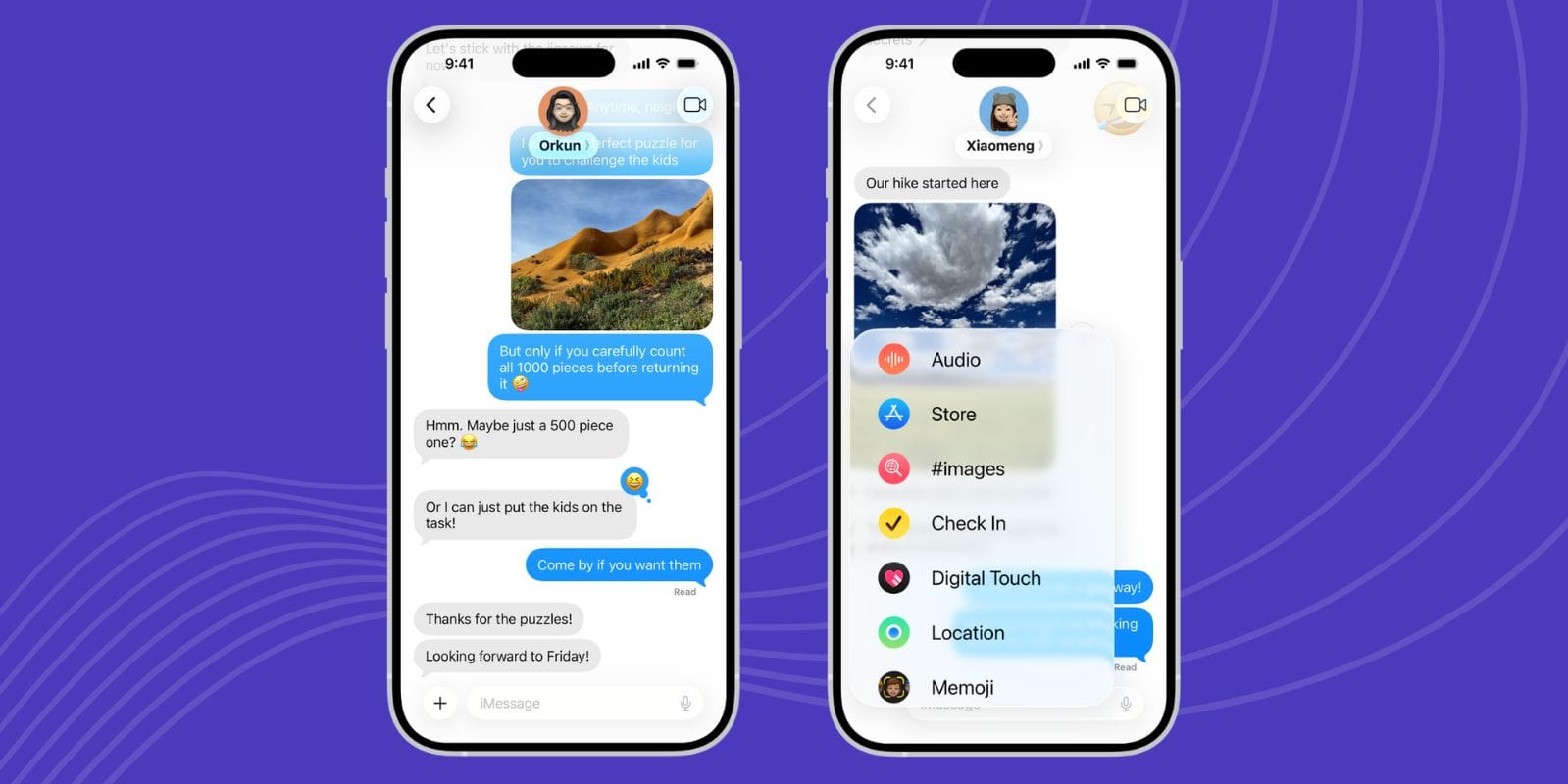
Photo by Jetpac
Where iMessage Uses Your Data
When people ask, “Does iMessage use data?”, they’re usually thinking about the texts themselves. But iMessage quietly uses a bit of data in other places, too.
Messages and media: Every text, photo, or video you send passes through Apple’s servers.
Syncing across devices: Your chats stay up to date on your iPhone, iPad, and Mac, which uses small background data.
Typing and reactions: Those little “typing…” bubbles and message reactions also use small bits of data.
Messages in iCloud: If you turn on this feature, your message history and attachments are automatically stored in iCloud, which can use more data when syncing.
None of these things uses much on their own, but together they use up a lot of data, especially if you use multiple devices or send a lot of media. When you’re using an eSIM for international travel, it’s worth being mindful of background syncing so you don’t waste data while abroad.
How Much Data iMessage Use by Activity
So, how much data does iMessage use in practice? It depends on what you’re sending.
|
Activity |
Average Data Usage |
|
Text-only message |
1–5 KB |
|
Photo (standard 1–2 MP) |
300 KB–1 MB |
|
High-resolution photo (10–12 MP) |
2–3 MB |
|
Video (720p, 1 minute) |
20–25 MB |
|
Video (1080p, 1 minute) |
40–50 MB |
|
Audio message (1 minute) |
400 KB–1 MB |
|
FiUser document |
Usually under 1 MB |
If you’re still wondering, ‘Does iMessage use data?’Here is a breakdown of the type of message you send, and how much data it may use.
Text-only messages
Text-only iMessages use very little data. Even if you’re chatting all day, the total for an entire month may not reach 10 MB. These messages only carry small bits of information, which makes them one of the most data-efficient ways to stay in touch.
If you often use iMessage to stay connected while traveling on an eSIM for iPhone, you’ll barely see any data difference. Texts are so light that even a 1 GB international plan can easily handle thousands of them without issue.
Photos
Photos take up more space than plain text. A standard snapshot might be around 500 KB, while a high-quality photo can reach 3 MB. If you’re part of group chats that exchange lots of pictures, your usage can build slowly over time.
Apple automatically compresses images before sending, so they’re smaller than the originals saved in your camera roll. For travelers using an eSIM for international travel, this built-in compression helps keep iMessage data usage low without noticeably reducing image quality.
Videos
Videos are the biggest source of iMessage data use. A one-minute video in 720p quality can use about 20 MB, while a 1080p clip can take 40 to 50 MB. Longer or higher-resolution clips naturally use much more.
If you send vacation clips or share short reels while abroad, it’s best to upload them over Wi-Fi or with a generous eSIM for iPhone data plan. Videos tend to be the only iMessage content that noticeably affects your total data consumption, especially when you’re traveling and avoiding international roaming charges.
Audio messages
Audio messages are small but not negligible. A one-minute voice note usually uses between 400 KB and 1 MB. Occasional recordings won’t make a difference, but if you rely on voice messages daily, the total can add up.
The convenience of audio messaging is worth it, though. It’s ideal when you can’t type or want to share an emotion that text can’t capture. For users on limited mobile plans or travelers using an eSIM for international travel, sending short audio clips is still a very efficient way to communicate.
Files and documents
Attachments like PDFs, text files, or spreadsheets are usually under 1 MB. Even if you send several in a single day, they’ll barely make a dent in your monthly total. Larger PowerPoint files or photos inside documents may take a little more space, but they remain much smaller than media shared through social platforms.
If you often share documents for work or study while using an eSIM for iPhone, iMessage keeps those transfers simple and lightweight. It’s a secure and fast way to share information without worrying about burning through your data.
How Much Data iMessage Uses for Different Types of Users
Everyone’s texting habits are different, and that’s what makes iMessage data usage vary so much from person to person. Some people use it only for quick chats, while others treat it like their main communication hub, sending photos, videos, links, and long voice notes all day. The following examples give a clear picture of what typical monthly data use might look like for different kinds of users.
Light user
If you mainly send short texts or simple messages, you’ll use around 20–50 MB per month. That’s incredibly small, even smaller than what a single app update uses. You could send thousands of messages and still stay under 100 MB without trying.
This usage provision is standard for people who rely on Wi-Fi most of the time or use iMessage for one-on-one conversations. For travelers using an eSIM for iPhone, this level of data use barely registers, even on a limited eSIM for international travel plans.
Average user
An average user, someone who texts every day, shares a few photos or short clips each week, and participates in a few group chats, typically uses 100–300 MB of data per month through iMessage.
This kind of usage fits most people’s daily routine. Even with moderate photo and video sharing, iMessage stays lightweight. The app compresses images and media efficiently, which helps keep data usage lower than social media platforms or other chat apps. You could still send and receive hundreds of photos before reaching even half a gigabyte.
Heavy user
If your conversations are filled with videos, memes, GIFs, and multiple group chats, your iMessage data usage might reach 1–2 GB per month or more. Heavy users often include people who share daily videos, use iMessage for work-related media, or frequently send long audio clips.
That may sound like a lot, but it’s still modest compared to what streaming apps consume. Watching one hour of Netflix in HD can use 3 GB of data, more than an entire month’s worth of active iMessage conversations. For anyone using an eSIM for international travel, this level of usage is still manageable with most Jetpac or similar plans, as they’re designed to handle moderate messaging and browsing without hitting data limits.
How to Check iMessage Data Usage
If you’re curious about how much data iMessage is using on your phone, you can check it in a few taps:
Go to Settings.
Tap Cellular (or Mobile Data).
Scroll until you find Messages.
You’ll see how much data iMessage has used so far.
You can reset these numbers every month by scrolling to the bottom and selecting “Reset Statistics.”
If you want to know how much space iMessage takes on your device, go to Settings > General > iPhone Storage > Messages. It’ll show how much your messages, photos, and attachments are used in total.
When you set up a new eSIM for iPhone, it’s a good idea to reset these stats so you can track your new plan accurately.
How to Reduce iMessage Data Usage
You don’t have to stop using iMessage to cut down on data. A few quick changes can help keep your usage low.
Use Wi-Fi whenever you can
Send photos, videos, or audio messages when you’re on Wi-Fi. It’s the easiest way to avoid eating through your plan or triggering international roaming charges.
Turn on Low Data Mode
Go to Settings > Cellular > Cellular Data Options > Data Mode and choose Low Data Mode. This slows down background syncing and saves bandwidth.
Enable Low-Quality Image Mode
In Settings > Messages, scroll down and turn on Low-Quality Image Mode. Photos will be sent in smaller sizes, but still look clear enough on screen.
Keep group chats in check
Group chats are fun, but they can use more data because of all the photos and videos. You can turn off auto-downloads for videos and just tap the ones you want to view.
Watch Messages in iCloud
If you’ve turned on Messages in iCloud, it’ll sync all your chats and attachments across devices. It’s handy but can use background data. You can pause it while traveling and turn it back on when you’re back on Wi-Fi.
Stay connected abroad with Jetpac eSIM
If you travel often, a Jetpac eSIM for iPhone is the easiest way to stay online anywhere. It works in more than 100 countries and lets you text internationally on iPhone through iMessage without worrying about international roaming charges.
Once activated, your number stays the same, and you can keep using iMessage as usual, same blue bubbles, same convenience. A Jetpac eSIM for international travel gives you reliable data wherever you go, so you can send messages and photos just like at home.
FAQs
Do iMessages use a lot of data?
No. Texts use only a few kilobytes each, and even photos or short videos stay small because iMessage compresses them before sending.
How many texts are 1GB of data?
One GB can take about 100,000 text-only iMessages. You’d have to message nonstop every day to use that much.
Can you use iMessage without using data?
Yes. When you’re on Wi-Fi, iMessage won’t touch your mobile data. If you’re offline, your iPhone switches to SMS automatically.
Is iMessage included in unlimited texting?
Not technically. It uses the internet, not your texting plan, but if you have unlimited data, you can send unlimited iMessages too.
Does iMessage count as data usage?
Yes, but it’s minimal. You can check it in Settings → Cellular → Messages; most users see only a few megabytes per month.
Why are some of my messages green instead of blue?
If you see a green bubble instead of blue, it just means your phone sent it as a regular SMS instead of an iMessage. That usually happens if your internet connection drops or the person you’re texting doesn’t use an Apple device.
Is it possible to use iMessage internationally?
Yes. As long as your phone has an internet connection, iMessage works anywhere. Many travelers prefer using a Jetpac eSIM for international travel since it gives you affordable, high-speed data abroad and helps avoid international roaming charges.
So, how much data does iMessage use? Not much at all. Texts barely use any data, photos use a little, and only long videos make a real difference.
To keep your iMessage data usage low, use Wi-Fi for large files, switch on Low Data Mode, and try the low-quality image option. If you plan to text internationally on iPhone, having a reliable eSIM for iPhone like Jetpac will make your life easier.
A Jetpac eSIM for international travel keeps you connected everywhere, no swapping SIM cards, no stress, no surprise bills. Whether you’re checking in from a hotel lobby or sending pictures from a beach café, iMessage will keep working the same way it does at home.