
How to Transfer eSIM from iPhone to Android & Common Issues
Learn how to transfer eSIM from iPhone to Android. Step-by-step guide on deactivation, activation, & avoiding issues with carriers & international eSIM plans.
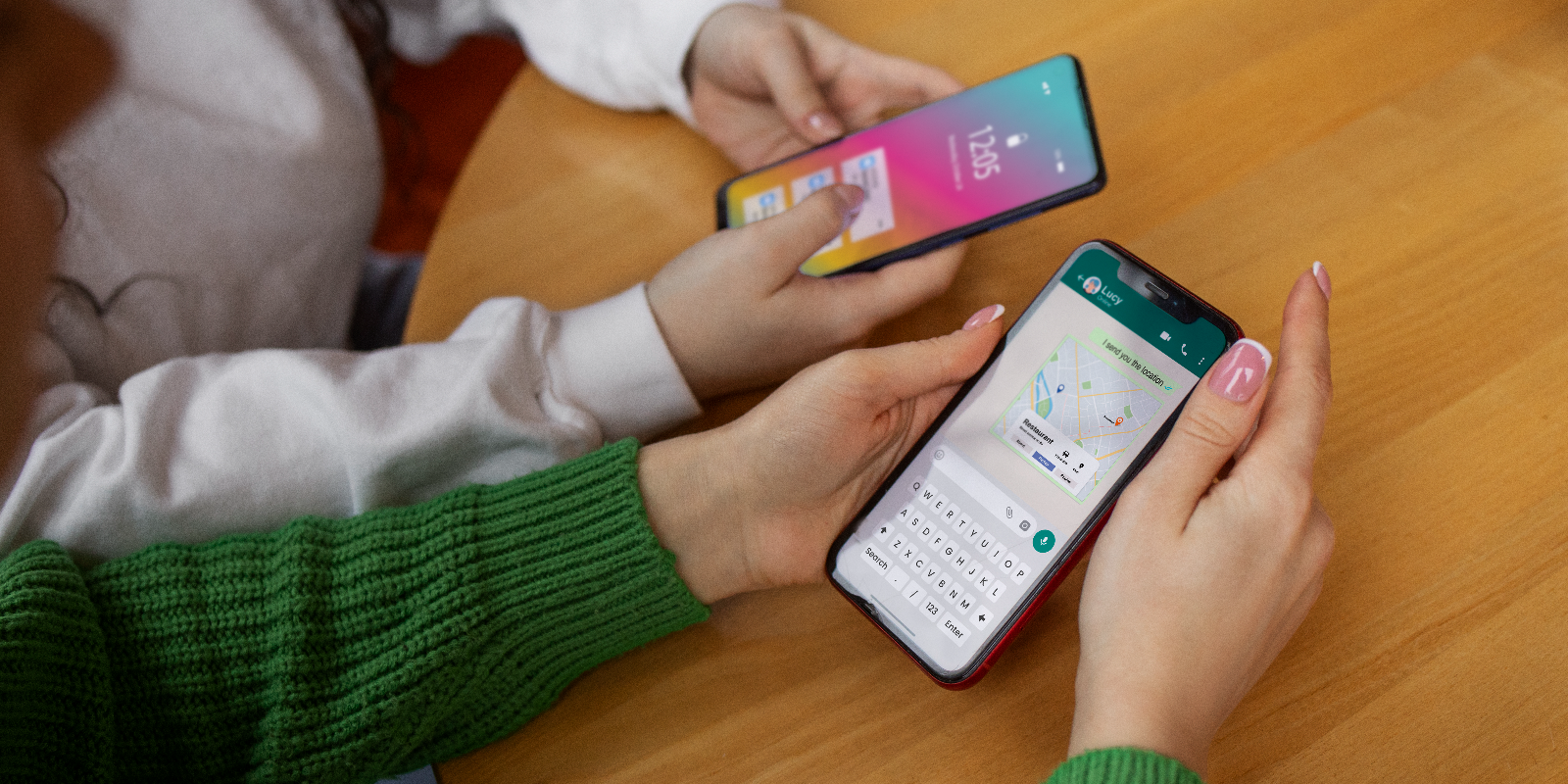
Switching from iPhone to Android is easier with eSIM, but it isn’t as simple as moving a physical SIM. Can you transfer an eSIM from an iPhone to an Android? Not directly. You need to deactivate the eSIM on your iPhone and activate a new one on your Android with your carrier’s help. This blog explains why transfers are tricky, how to prepare your devices, the steps for deactivation and activation, and how to avoid common issues like failed QR codes or network errors. For travelers, it’s also a good time to review your international eSIM plans. Jetpac, the best eSIM for travel, gives you coverage in 200+ countries, automatic setup, and 24/7 support, keeping you connected wherever you switch.
Switching from iPhone to Android used to mean accepting the hassle of visiting carrier stores, waiting for new SIM cards, and potentially losing your phone number for days. With eSIM technology, the process should be simpler, but many users discover that moving their digital SIM isn't as straightforward as expected.
If you're planning to transfer eSIM from iPhone to Android, you're not alone in facing this challenge. Unlike physical SIM cards that you can simply remove and insert into new devices, eSIM profiles are tied to specific hardware and require careful coordination between devices, carriers, and your own technical steps.
With proper preparation and understanding of the process, you can successfully move your eSIM service to your new Android device while avoiding common pitfalls that leave people without connectivity. This blog walks you through every step, from compatibility checks to troubleshooting activation issues.
What is an eSIM & How Does it Differ from a Physical SIM?
An eSIM (embedded SIM) is a digital version of traditional SIM cards that's built directly into your device's hardware. Instead of inserting a physical plastic chip, you download carrier profiles digitally through software activation.
Key Technical Differences
1. Physical Form Factor: Traditional SIM cards exist as removable plastic chips in various sizes (standard, micro, nano), while eSIMs are embedded chips permanently installed in your device during manufacturing.
2. Installation Process: Physical SIMs require hardware insertion and can be easily moved between compatible devices. eSIM for iPhone and Android devices requires digital activation through QR codes or manual profile entry.
3. Storage and Management: Your device can store multiple eSIM profiles simultaneously (typically 5-20, depending on model) but only activate one or two at once. Physical SIMs require hardware swapping to change carriers.
4. Transfer Limitations: Physical SIM cards move easily between devices, while eSIM profiles are locked to specific hardware. When you transfer eSIM from iPhone to Android, you're actually deactivating the old profile and creating a new one for your Android device.
Why eSIM Transfers Are Complex?
1. Device-Specific Encryption: Each eSIM profile includes device-specific security keys that prevent simple copying between phones. This security feature protects against SIM cloning but complicates legitimate device switches.
2. Carrier Control: Unlike physical SIMs that users control entirely, eSIM activation requires carrier participation. When you learn how to transfer eSIM from iPhone to Android, your carrier must deactivate the old profile and generate a new one.
3. Hardware Dependencies: eSIM functionality varies between device manufacturers and models, affecting compatibility and activation procedures when switching between iPhone and Android platforms.
How to Transfer eSIM from iPhone to Android?
Understanding that you cannot directly transfer eSIM from iPhone to Android is crucial – the process actually involves deactivating your iPhone eSIM and activating a new profile on your Android device.
The Reality of eSIM "Transfer"
1. True Transfer vs. Reactivation: What people call "transferring" eSIM is actually a deactivation and reactivation process. Your carrier creates a new eSIM profile for your Android device while permanently disabling the iPhone version.
2. One-Way Process: Once you complete the transfer, your original iPhone eSIM becomes permanently unusable. This isn't like physical SIM swapping, where you can move cards back and forth between devices.
3. Carrier Involvement Required: Successful eSIM migration requires active participation from your carrier's support team or online systems. You cannot complete this process independently without carrier authorization.
Overview of the Complete Process
STEP 1: Preparation and Compatibility
Verify Android device eSIM compatibility
Check carrier policies for device switching
Backup important iPhone data and settings
Gather account information and identification
STEP 2: iPhone Deactivation
Contact the carrier to request an eSIM transfer
Properly remove/deactivate the iPhone eSIM profile
Confirm deactivation completion with the carrier
STEP 3: Android Activation
Obtain a new QR code or activation details
Install an eSIM profile on an Android device
Configure calling, messaging, and data settings
Test all functionality thoroughly
3 Things to Check Before Starting the Transfer
Preparation prevents common failures when you can transfer an eSIM to another phone. These checks ensure compatibility and smooth processing throughout the migration.
1. Compatibility Verification
Android Device eSIM Support: Not all Android phones support eSIM technology. Transfer eSIM to a new phone,e Android requires compatible hardware from manufacturers like Samsung, Google, Motorola, or other eSIM-enabled brands.
Popular eSIM-compatible smartphones include the Apple iPhone lineup (iPhone XS, XR, and all newer models), the Samsung Galaxy series, such as the S21, S22, S23, Note 20, and select Galaxy A devices, and the Google Pixel series starting from Pixel 3 through the latest Pixel phones. Other eSIM-ready devices include the Motorola Edge series and newer flagships, the Xiaomi 13, 12, and 11 series, as well as recent models from Oppo, Huawei, and OnePlus that support eSIM functionality.
Carrier eSIM Support: Verify your carrier supports eSIM services for both iPhone and Android platforms. Some carriers have limited eSIM compatibility or charge fees for device switching.
Network Band Compatibility: Ensure your new Android device supports the same cellular frequency bands as your iPhone to maintain similar coverage quality and data speeds.
Carrier Policy Review
1. Transfer Fees and Restrictions: Some carriers charge $25-$50 for eSIM "transfers" or limit how frequently you can switch devices. Review your plan terms before beginning the process.
2. Account Standing Requirements: Carriers may require accounts to be current on payments and not under contract restrictions before approving eSIM transfers to new devices.
3. International Support: If you frequently use international eSIM plans or travel abroad, confirm your carrier's eSIM services work properly with your new Android device in your typical destinations.
Backup and Documentation
1. iPhone Backup Completion: Complete a full iPhone backup through iTunes or iCloud before starting eSIM removal, ensuring you don't lose important data during the transition.
2. Account Information Gathering: Collect account numbers, PIN codes, billing addresses, and other information your carrier may require for identity verification during the transfer process.
3. Emergency Contact Planning: Plan alternative communication methods during the transfer process, as you may experience service interruptions lasting several hours.
How to Remove / Deactivate the eSIM on iPhone?
Properly removing your eSIM for iPhone is crucial for successful migration. Incorrect removal can complicate reactivation on your Android device or leave your account in an unclear state.
Contacting Your Carrier First
Why Carrier Contact is Essential:
Before removing the eSIM from your iPhone, contact your carrier to initiate the transfer process. This ensures they're prepared to generate a new profile for your Android device.
Information to Provide:
Your account details and verification information
Current iPhone model and IMEI number
New Android device model and IMEI
Preferred timeline for the switch
Transfer Authorization:
Many carriers require verbal or written authorization before processing eSIM transfers, treating them similarly to number porting requests for security reasons.
iPhone eSIM Removal Steps
Method 1: Settings Removal
Settings > Cellular
Select your eSIM line
Remove Cellular Plan
Confirm removal when prompted
Restart the iPhone to complete the process
Method 2: Carrier-Initiated Remote Removal
Some carriers can remotely deactivate eSIM profiles without requiring action on your iPhone, though this varies by provider and may take longer to complete.
Method 3: Reset Network Settings (Use with caution)
Settings > General > Reset > Reset Network Settings
Enter the passcode and confirm
This removes all eSIM profiles but also deletes Wi-Fi passwords and other network configurations
Verification of Complete Removal
1. Settings Check: After removal, Settings > Cellular should show only physical SIM options or "No SIM" if your iPhone doesn't have a physical SIM card installed.
2. Carrier Confirmation: Contact your carrier to confirm they see the eSIM as deactivated on their system before proceeding with Android activation.
3. Service Interruption: Expect complete loss of cellular service on your iPhone once eSIM removal is complete. This is normal and indicates successful deactivation.
Getting a New QR Code or Activation Details from Your Carrier
After successfully removing your iPhone eSIM, obtaining activation credentials for your Android device requires coordination with your carrier's eSIM provisioning systems.
Requesting New eSIM Profile
Carrier Contact Methods:
Customer service phone lines (often fastest)
Online account management portals
Carrier retail locations (if immediate assistance needed)
Live chat support (available 24/7 with many carriers)
Required Information:
Account holder verification (name, address, PIN, etc.)
New Android device IMEI number
Confirmation that the old iPhone eSIM is deactivated
Preferred delivery method for activation credentials
QR Code Delivery Options
1. Email Delivery: Most carriers email QR codes as PDF attachments or embedded images within 15-30 minutes of profile generation.
2. SMS Text Message: Some carriers text QR code image links, though this method can be problematic if you don't have alternative connectivity.
3. Account Portal Access: Many carriers provide QR codes through online account dashboards, allowing you to access activation details anytime.
4. In-Store Generation: Carrier retail locations can generate QR codes immediately, helpful if you need instant activation or encounter online system issues.
How to Set Up eSIM on Your Android Device?
The exact steps for activating eSIM can vary slightly by manufacturer, but the process usually involves scanning a QR code from your carrier or entering details manually. Below are the most common setups by brand.
Samsung Galaxy (S, Note, and select A series)
Open Settings > Connections > SIM Manager (or SIM Card Manager)
Tap Add eSIM or Add Mobile Plan
Select Scan QR Code and use the camera to scan your carrier’s code
Follow prompts to download and install the eSIM profile
Configure your default line for calls, texts, and data
Note: Some models may need the latest software update. Samsung allows dual SIM use (physical SIM + eSIM).
Google Pixel (Pixel 3 and newer)
Go to Settings > Network & Internet > SIMs
Tap + Add SIM
Select Download a SIM instead?
Scan the QR code from your carrier or enter details manually
Complete profile installation and set preferences
Pixel advantage: Google provides a stock Android experience with consistent eSIM setup and regular updates.
Motorola (Edge series and newer)
Open Settings > Network & Internet > Mobile Network
Tap + Add Carrier
Scan the carrier QR code or enter details manually
Install and activate the profile
OnePlus and Other Brands (Oppo, Xiaomi, Huawei, etc.)
Navigate to Settings > Mobile Network
Select Add eSIM or Add Carrier
Scan the QR code or enter details manually
Install and activate the profile
Manual Setup (if QR code fails)
Choose Enter Details Manually instead of scanning
Enter the activation code and other details from your carrier (SM-DP+ address, activation code, confirmation code)
Download and install the profile
App-Based Activation: Some carriers offer smartphone apps that handle eSIM activation without requiring QR code scanning, streamlining the process of transferring eSIM to a new phone Android process.
How to Confirm Your eSIM Works Properly on Android?
After installing your eSIM profile, it’s important to test connectivity and services before relying on it for daily use.
✅ Basic Connectivity Checks
Cellular Data:
Turn off Wi-Fi temporarily
Open a browser and load multiple websites
Test app connectivity (messaging, maps, social media)
Check signal strength in the status bar
Voice Calls:
Make outgoing calls to different numbers
Receive incoming calls to verify reliability
Ensure the caller ID shows correctly
Check audio clarity and call quality
Test emergency calling (only if safe to do so)
📩 Messaging & Advanced Features
SMS/MMS:
Send and receive texts
Test picture/video messages
Verify group chats work
VoLTE & Wi-Fi Calling:
Enable VoLTE in settings
Test Wi-Fi calling if supported by your carrier
Check HD voice quality and seamless switch between Wi-Fi and mobile data
🔢 Number & Account Verification
Call a contact and confirm your number shows correctly
Check your carrier app or account portal to see if the device appears correctly
Ensure voicemail works as expected
Test SMS-based services (banking OTPs, 2FA codes)
Verify usage and billing updates in your carrier account
4 Common Issues That You Can Easily Fix
1. QR Code Problems:
Won’t scan → Clean camera/lens, adjust lighting, zoom in/out
Invalid QR → May be expired; request a new code or use manual activation
2. Network Issues:
No Service → Restart device, recheck carrier settings, manually select network
Data works, but calls/SMS don’t → Verify APN and VoLTE settings, reset network settings, contact carrier
3. Dual SIM Conflicts:
Wrong line used → Go to Settings > SIMs (or SIM Manager), set preferred SIM for calls, SMS, and data
Confusion → Label each line clearly
4. Carrier-Specific Issues:
Transfer refused → Clear outstanding balances, confirm your plan supports eSIM
Delays → Escalate with the carrier or visit a retail store for faster activation
Final Thoughts on Moving Your eSIM from iPhone to Android
Switching your eSIM from iPhone to Android isn’t as simple as swapping a physical SIM card; it requires carrier support, proper deactivation, and setting up a new profile on your Android device. With preparation and the right steps, you can move your service smoothly without losing connectivity.
For frequent travelers, this is also the perfect moment to rethink your mobile setup. Instead of relying on expensive roaming or complex carrier transfers, you can use Jetpac. As the best eSIM for travel, Jetpac gives you one eSIM that works in 200+ destinations, automatic multi-network switching, upfront pricing with no bill shocks, and 24/7 support. It even saves you up to 70% compared to traditional roaming.
With Jetpac, moving devices is only part of the story; staying connected worldwide is effortless.
FAQ
Can you transfer an eSIM from an iPhone to an Android?
Not directly. The carrier must deactivate the iPhone eSIM and issue a new profile for your Android.
How do I get my eSIM QR code?
From your carrier, usually via email, app, or retail store, after verifying your account.
How do I remove eSIM from iPhone?
Go to Settings > Cellular > Select Plan > Remove Cellular Plan. Contact your carrier first to avoid service loss.
How many eSIMs can an iPhone store?
Most iPhones support 8–20 profiles (varies by model), but only one eSIM + one physical SIM active at a time. iPhone 14+ in some regions supports dual eSIM active.
Can I set up eSIM without a QR code?
Yes. Carriers can provide manual activation details (SM-DP+ address, activation code, etc.) to enter in Android settings.
Can I transfer an eSIM between phones anytime?
Yes, but only with carrier involvement. Some carriers charge fees or limit transfers, while travel eSIM providers are often more flexible.